Note
OpenProject is continuously enhanced with every monthly release to better support project management. Teams using PM² and PMflex also benefit from this continuous stream of automation and UX improvements. This use case description was updated for OpenProject 17.7 and incorporates feedback from the PM² Community.
Implementing PM² and PMflex project management in OpenProject
OpenProject is a powerful project management tool that provides excellent support for the PM² methodology. PM² is the official project management methodology of the European Commission. It is designed as a light and easy-to-implement framework, which project teams can tailor to their specific needs.
PMflex is an extension of the PM² Project Management Methodology developed and maintained by the Federal Office of Administration (BVA). It complements PM² by providing additional guidance, templates, and best practices to adapt the methodology and targets German federal authorities and other public-sector bodies.
Project teams who choose to implement the PM² or PMflex methodology can leverage the wide range of features and customizability that OpenProject offers in order to effectively support PM² implementation during the whole project life cycle.
Structure and terminology
The following sections focus on PM² concepts that require a specific mapping or configuration in OpenProject. General PM² Guide chapter headings and methodology terms without a distinct OpenProject equivalent are intentionally omitted. The PM² Guide remains the methodological reference.
PM² project
| Aspect | Mapping and guidance |
|---|---|
| Meaning in PM² | A PM² project is implemented as an individual OpenProject project. |
| Representation in OpenProject | Project; use a project template to standardize the PM² setup. |
| System-wide configuration | Configure global defaults under Administration → Projects → New project. |
| Project-specific configuration | Configure the required modules, members, work package types and project life cycle in a template, then set the project as a template. |
| Demo | PM² demo project; portfolio example |
| Potential product iteration | DREAM-467 PM² project type with additional project attributes #67001 Create seeded PM² projects at runtime |
Project roles
| Aspect | Mapping and guidance |
|---|---|
| Meaning in PM² | Project roles define the responsibilities and decision-making authority within the PM² governance model. |
| Representation in OpenProject | Project members with roles |
| System-wide configuration | Create project roles and assign permissions under Administration → Users and permissions → Roles and permissions. |
| Project-specific configuration | Add members and assign the appropriate PM² role in the project’s Members module. |
| Demo | Members of the PM² demo project |
| Potential product iteration | #31141 Add PM² roles and permissions to seed data |
Project life cycle
| Aspect | Mapping and guidance |
|---|---|
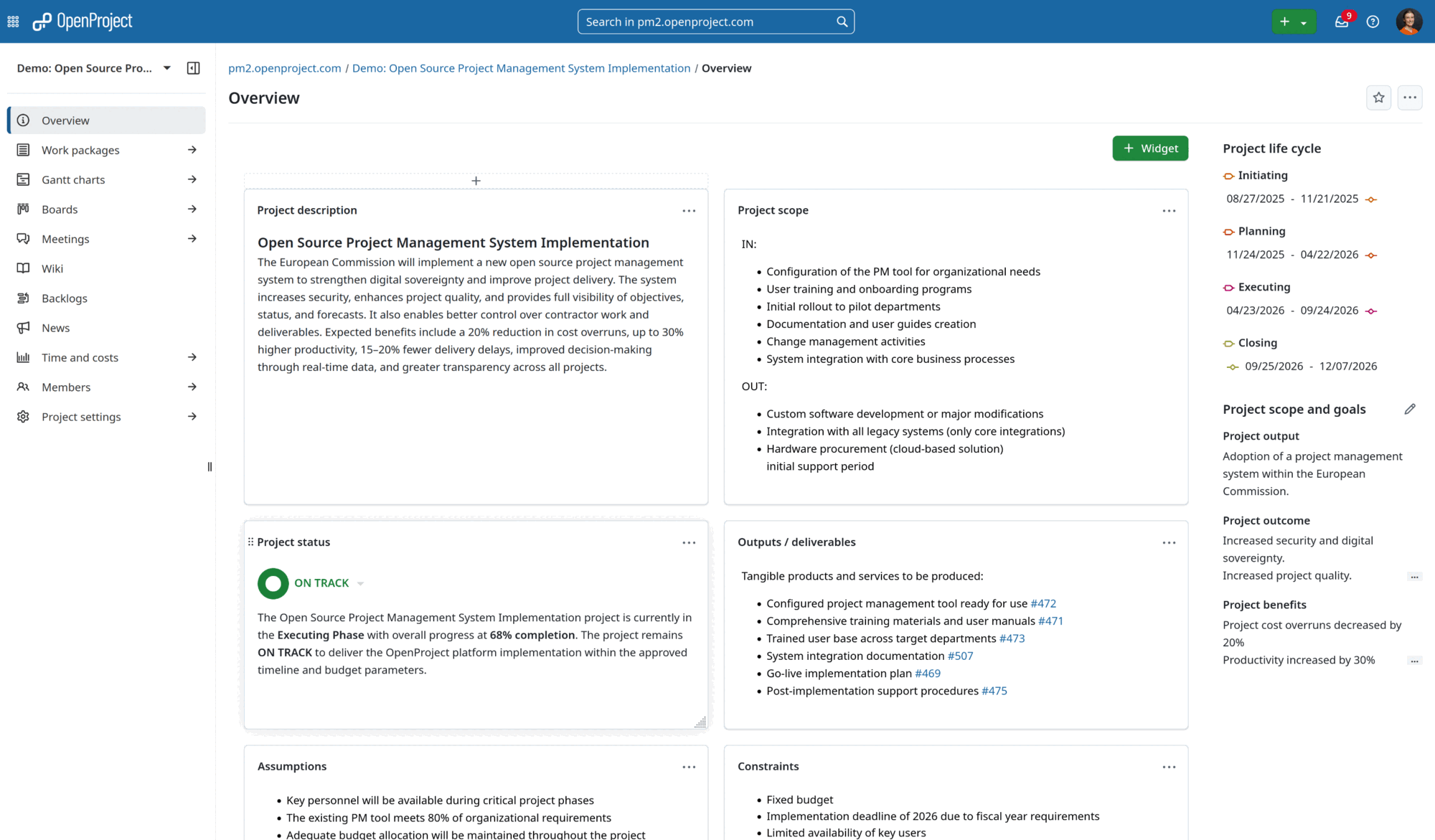
| Meaning in PM² | The PM² project lifecycle consists of the Initiating, Planning, Executing and Closing phases. |
| Representation in OpenProject | Project life cycle and project timeline widget |
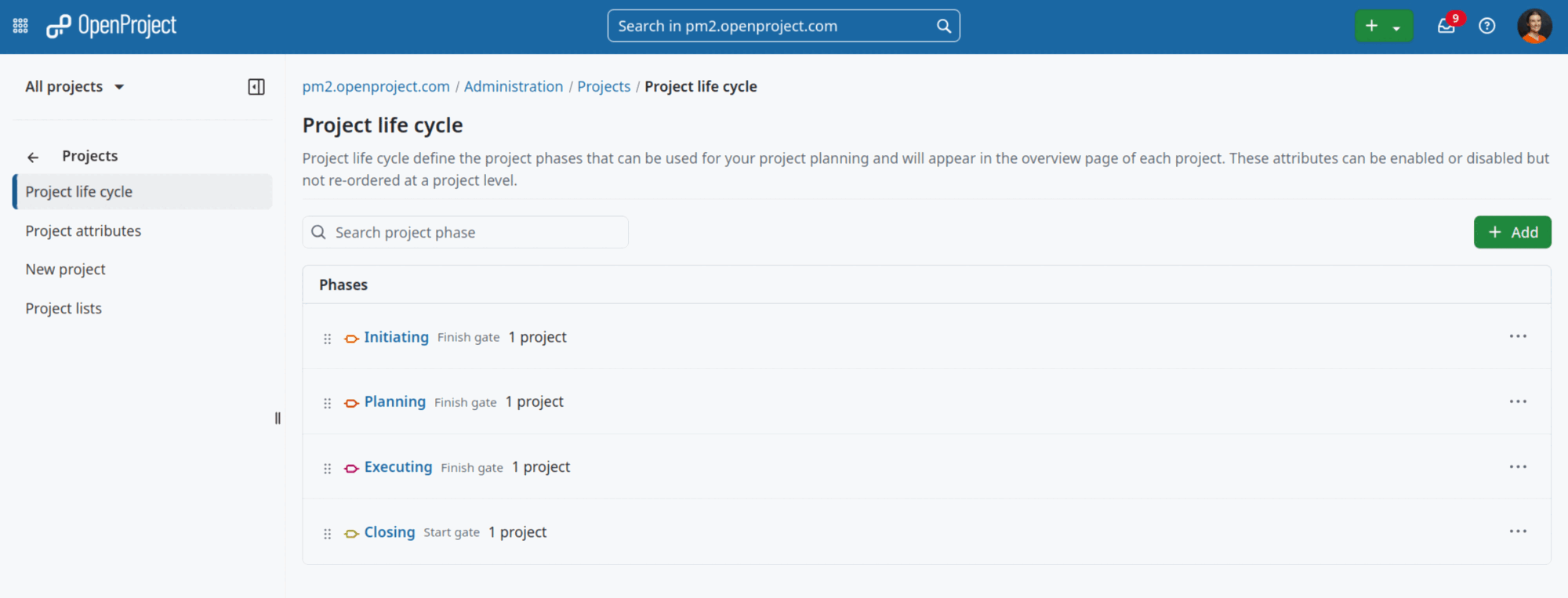
| System-wide configuration | Define the globally available phases under Administration → Projects → Project life cycle. The four PM² phases are available by default. |
| Project-specific configuration | Enable the required phases for the project. |
| Demo | Project overview |
| Potential product iteration | — |
Phase gates and approvals
| Aspect | Mapping and guidance |
|---|---|
| Meaning in PM² | Phase gates and approvals are formal review and decision points between phases. The PM² gates are RfP, RfE and RfC. |
| Representation in OpenProject | Phase gates in the project life cycle; approval activities can additionally be documented with an Approval work package and a meeting. |
| System-wide configuration | Configure gates together with their phases under Administration → Projects → Project life cycle. |
| Project-specific configuration | Enable the corresponding phases and gates for the project. |
| Demo | List of approvals |
| Potential product iteration | #65838 Show phase gates as separate columns in the project list #49426 Review and approval vote for work packages #68050 Link meetings with phase gates #68052 Link work packages with phase gates |
Project deliverables
| Aspect | Mapping and guidance |
|---|---|
| Meaning in PM² | Project deliverables are the products or services produced by the project. They are formally reviewed and accepted against the criteria in the Deliverables Acceptance Plan. They are distinct from the management artefacts used to govern the project. |
| Representation in OpenProject | Deliverables are represented as work packages. Their acceptance criteria and status can be captured in the work package form and documented through related Approval or Decision work packages. |
| System-wide configuration | Create and configure a Deliverable type under Administration → Work packages → Types. Add any required acceptance fields to its form. |
| Project-specific configuration | Enable the Deliverable type and relevant custom fields for the project. |
| Demo | — |
| Potential product iteration | — |
PM² artefacts
| Aspect | Mapping and guidance |
|---|---|
| Meaning in PM² | PM² artefacts document the information and decisions produced while managing a project. |
| Included terms | Project Initiation Request, Business Case, Project Charter, Project Handbook, Project Stakeholder Matrix, Project Work Plan, Outsourcing Plan, Deliverables Acceptance Plan, Transition Plan, Business Implementation Plan, Project Status Report, Project-End Report, Quality Review Report and Change Request |
| Representation in OpenProject | Each artefact is a custom work package type with a pre-filled description. Artefacts can include project attributes and be exported with the PMflex Artefact PDF template. |
| System-wide configuration | Create and configure artefact types under Administration → Work packages → Types. Configure their form, project attributes, PDF templates and automatic artefact export on the same administration page. |
| Project-specific configuration | Enable the artefact work package types for the project. A project template is recommended. |
| Demo | Project Initiation Request; list of all PM² artefacts |
| Potential product iteration | #67726 Project business case widget for project overview #68058 Stakeholder module to list all relevant project stakeholders #30528 Project status reporting module #66309 Live collaboration for documents |
Project logs
| Aspect | Mapping and guidance |
|---|---|
| Meaning in PM² | PM² uses four central project logs: the Change Log, Risk Log, Issue Log and Decision Log. They provide controlled records of changes, risks, issues and decisions throughout the project. |
| Representation in OpenProject | Change Request, Risk, Issue and Decision work packages, each displayed in a corresponding saved work package view |
| System-wide configuration | Create the required log entry types under Administration → Work packages → Types. Create additional attributes under Administration → Custom fields and add them to the corresponding forms. |
| Project-specific configuration | Enable the log entry types and custom fields for the project, then configure and save one filtered view for each log. |
| Demo | Risk Log example; Example risk |
| Potential product iteration | #38012 Risk management module |
Meetings
| Aspect | Mapping and guidance |
|---|---|
| Meaning in PM² | PM² uses meetings such as the Planning Kick-off Meeting and Executing Kick-off Meeting to align participants, review information and document decisions. |
| Representation in OpenProject | Meetings module |
| System-wide configuration | Enable Meetings by default for new projects under Administration → Projects → New project. |
| Project-specific configuration | Enable the Meetings module for the project. |
| Demo | Ready for Planning meeting |
| Potential product iteration | #35642 Provide templates for meeting agendas #67059 Copy meeting agendas when creating a project based on a template |
Current development and next steps
Product roadmap and feature backlog
FAQ
How to setup a PM² project in OpenProject?
OpenProject is your go-to product, which enables a successful implementation of PM² methodology.
Each PM² project is established as an individual OpenProject project, incorporating the PM²-specific roles. Projects can be configured with:
- Project members assigned to specific PM² roles (Project Owner, Business Manager, Project Manager, Project Steering Committee etc.)
- Project life cycle / phases to split projects into the four sequential and non-overlapping PM² project life cycle phases
- Custom work packages to mirror the PM²-specific artefacts (e.g. Business Case, Project Handbook etc.) incl. official PM² artefacts templates
- Gantt charts for giving you a visual timeline of your PM² project
- Meetings module to help you prepare meetings (incl. agenda, reference to work packages) and collect all meeting-relevant information in one place
How to use project templates to quickly setup new PM² projects?
You can also use project templates to make it easier to create new PM² projects with the same structure, set of enabled modules or custom work package templates. We highly recommend using project templates for standardizing PM² project setup across the organization. This will also help you guide users who are new to PM² methodology. Once a new PM² project is created using a template, it can then be modified in any way in order to allow the tailoring of the methodology.
How to setup and manage PM² phases?
OpenProject’s project life cycle effectively represents PM² phases and their associated phase gates (Ready for Planning, Ready for Executing, Ready for Closing). You can setup the four sequential, non-overlapping phases and their associated phase gates in the project settings.
Add the project timeline widget to the project overview to visualize the current phase and gate status at a glance.
How to successfully pass the phase gates?
At the end of each phase, the project undergoes a review and approval process. This ensures that the project is reviewed by the relevant individuals, such as the Project Manager (PM), Project Owner (PO) or Project Steering Committee (PSC), before moving on to the next phase. These checkpoints improve the quality of project management and enable the project to proceed in a more controlled way.
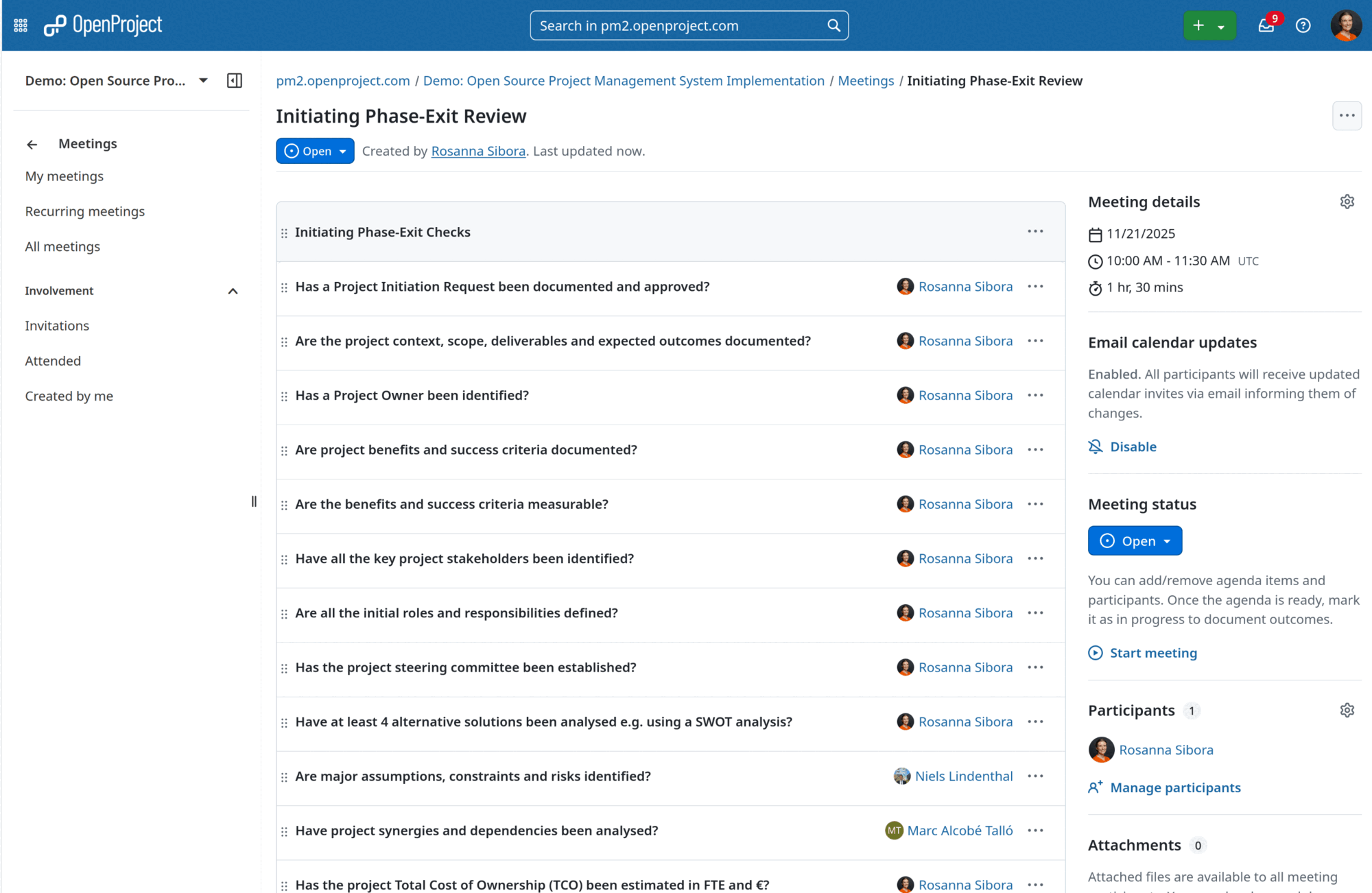
The three PM² phase gates are: • RfP (Ready for Planning): at the end of the Initiating Phase • RfE (Ready for Executing): at the end of the Planning Phase • RfC (Ready for Closing): at the end of the Executing Phase.
To conduct the approval process we suggest to use work packages in combination with the meeting module. Create a work package and a corresponding meeting, Use the phase-exit checklist to evaluate the readiness for the next project phase.
How to create and share PM² artefacts with OpenProject?
PM² methodology includes specific deliverables that can be managed through OpenProject’s custom work packages. To do so, create custom work packages for PM² artefacts like Project Charter, Business Case, Project Work Plan etc.
While creating work packages add the official templates as pre-filled description of the newly created work package types. Whenever a user will create a new artefact using the work package, the template will be automatically visible and needs only to be filled out with relevant project data.
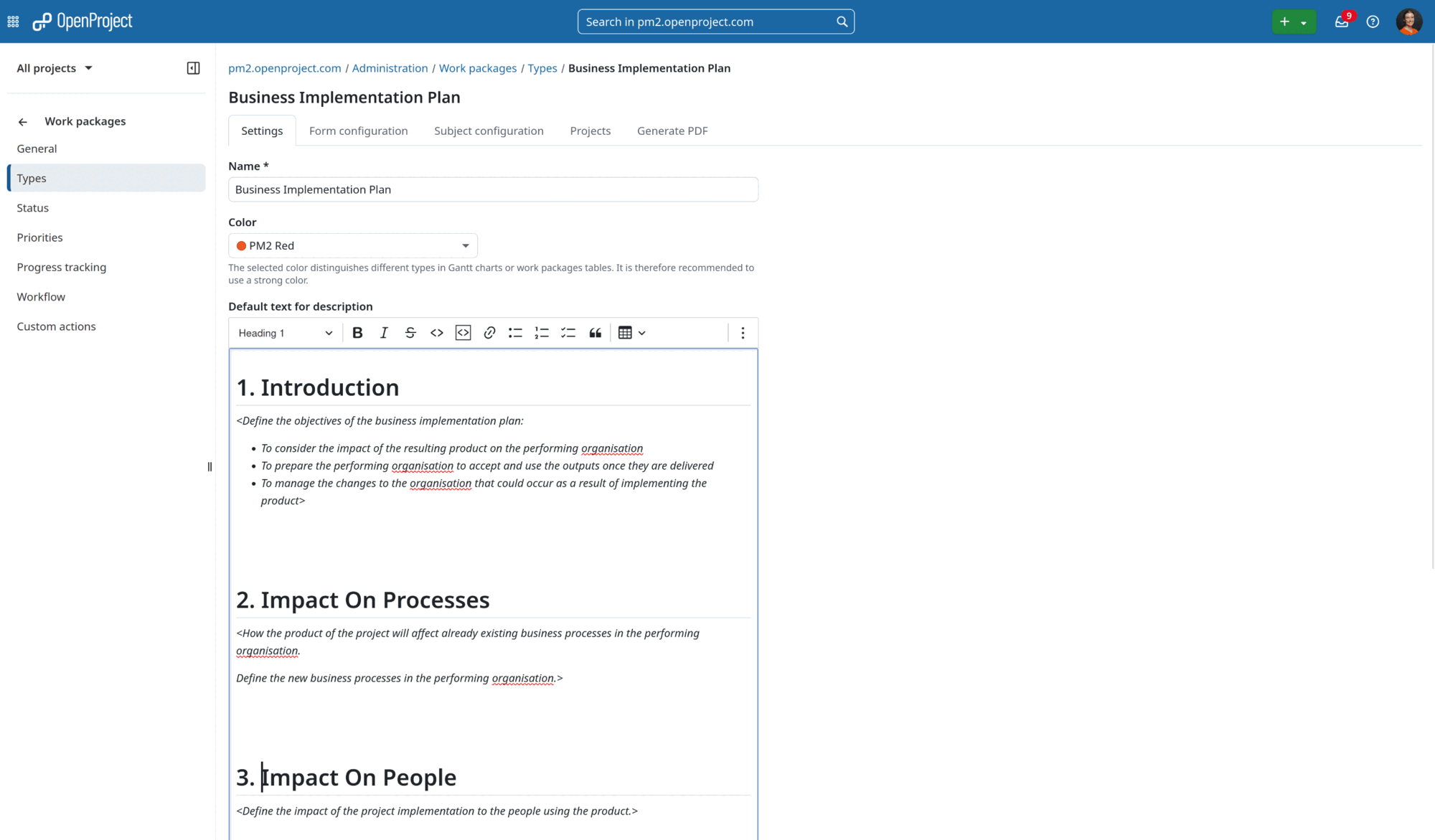
Administrators can configure which project attributes are displayed for each work package type. Project members can then view and edit this project-level information directly in the work package’s Project attributes tab.
Completed artefacts can be exported with the dedicated PMflex Artefact PDF template. Administrators can also configure an automatic artefact export whenever a work package status changes. The generated PDF can be attached to the work package or uploaded to the project’s connected Nextcloud folder.
Since all artefacts can be stored directly within work packages, OpenProject is your single source of truth providing all relevant project information. Everyone from the team can always access the current version of artefacts.
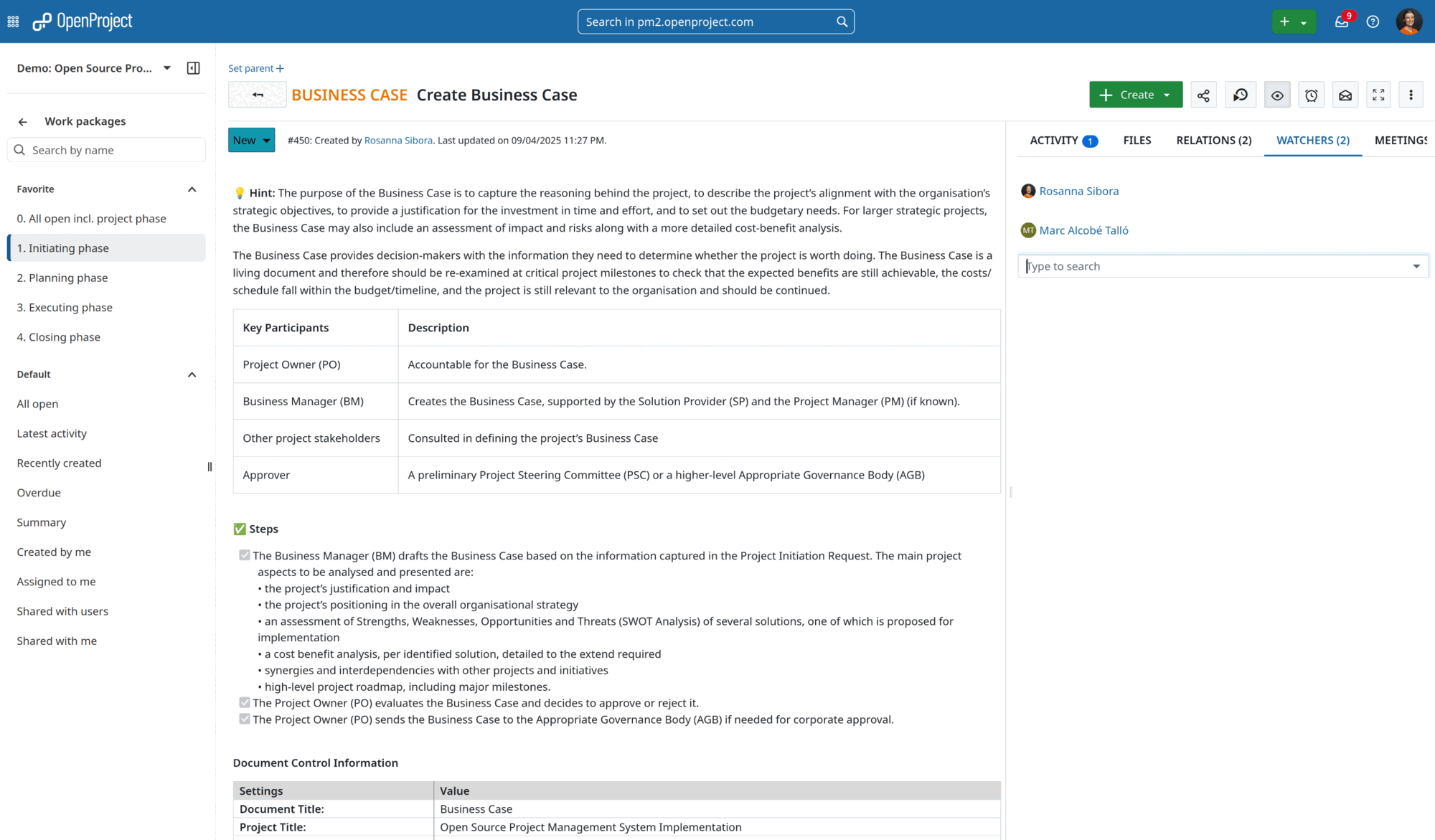
If you want to be up to date with all changes within certain artefacts, e.g. Project Handbook, just add your name to the watchers list and thanks to e-mail notifications you will never miss an update.
How to get an overview over tasks within each phase?
OpenProject provides multiple views for managing PM² project work effectively.
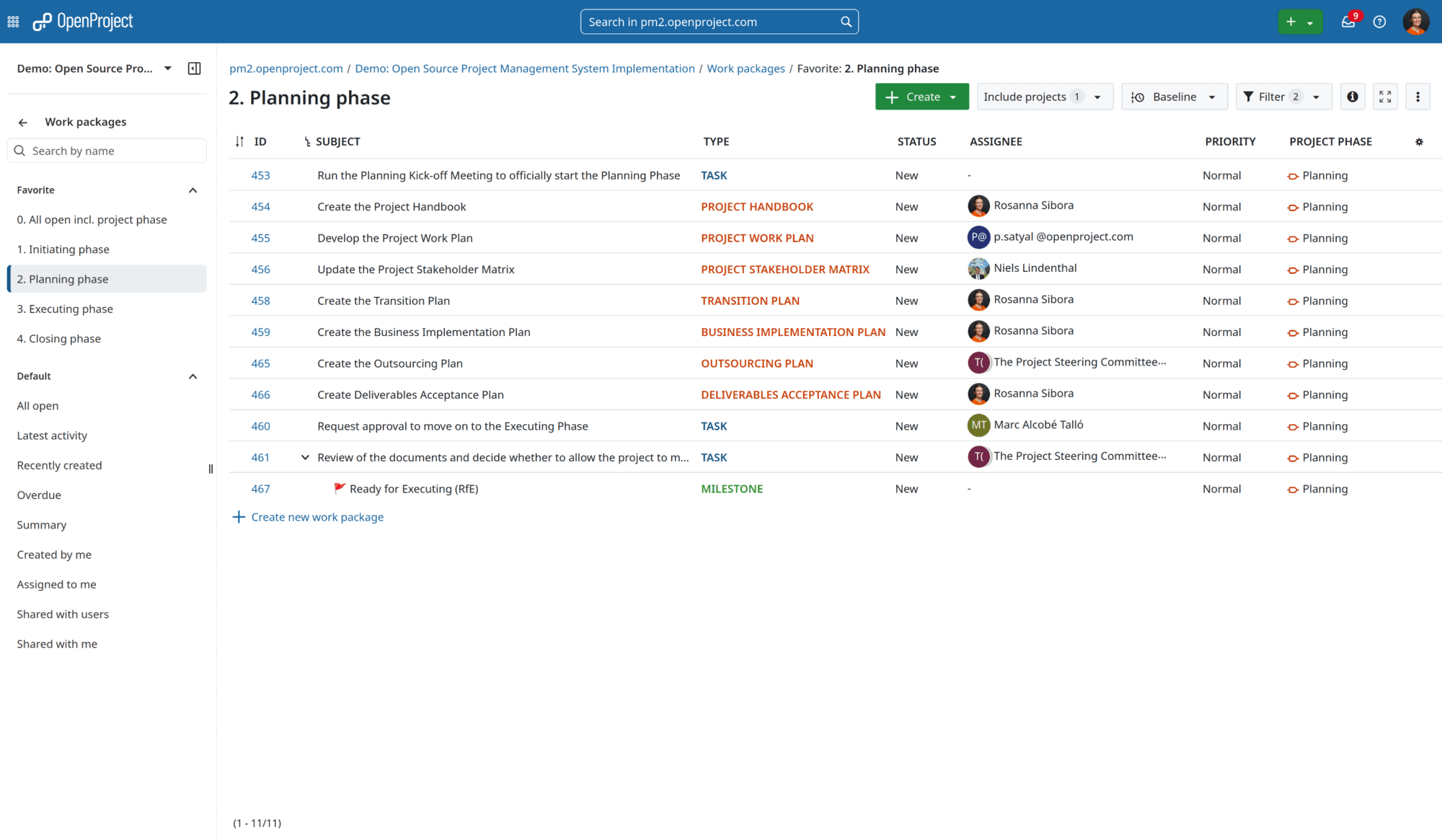
Table view:
- Tabular display of all project artefacts and deliverables
- Customizable sorting, grouping, and filtering by PM² phases or artefact types
These tables are highly customizable and can be configured to show precisely the information you need. Tables can also be sorted (for example by id, name, start dates, project, assignee, priority), grouped and filtered to create highly precise views. They can also show nested parent-children relations in hierarchy view.
To quickly access your most used table views, save these as your favorite filters. These will be visible to all project members. For PM² we recommend sorting all tasks per phase. With this view you can fully focus on the essential tasks within the current phase.
Gantt View:
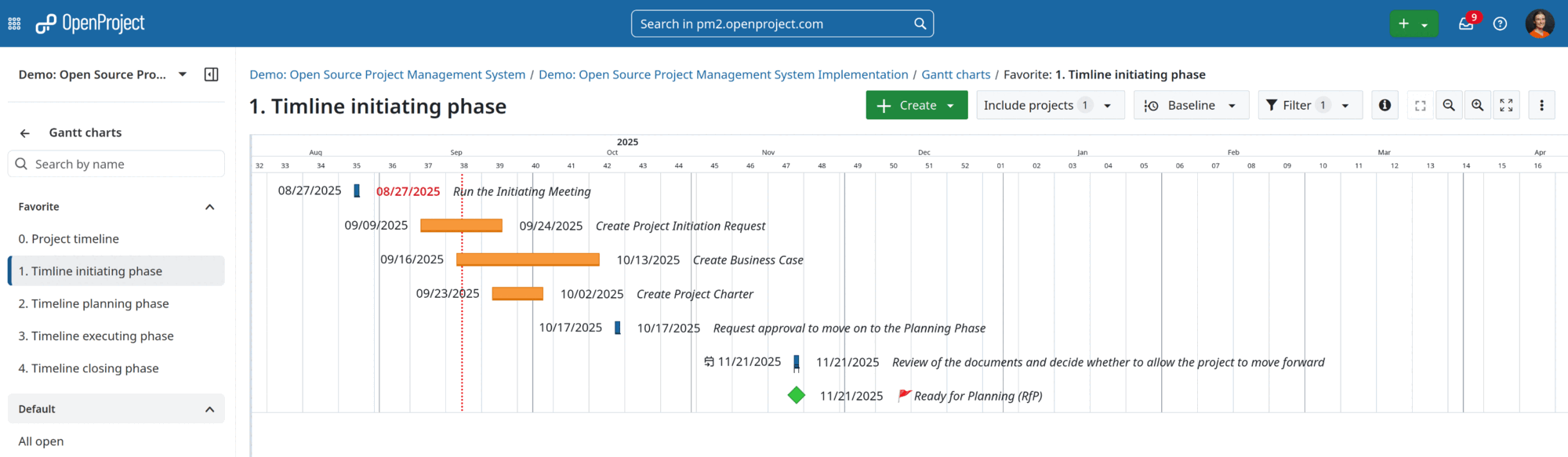
- Timeline-based visualization of PM² phases
- Dependencies between tasks and artefacts
- Critical path analysis for phase gate readiness
The Gantt chart module allows you to quickly visualize planning of each phase in a timeline view that also displays work package relations. Like table view, it can be filtered to create custom views that can be saved.
Board View:
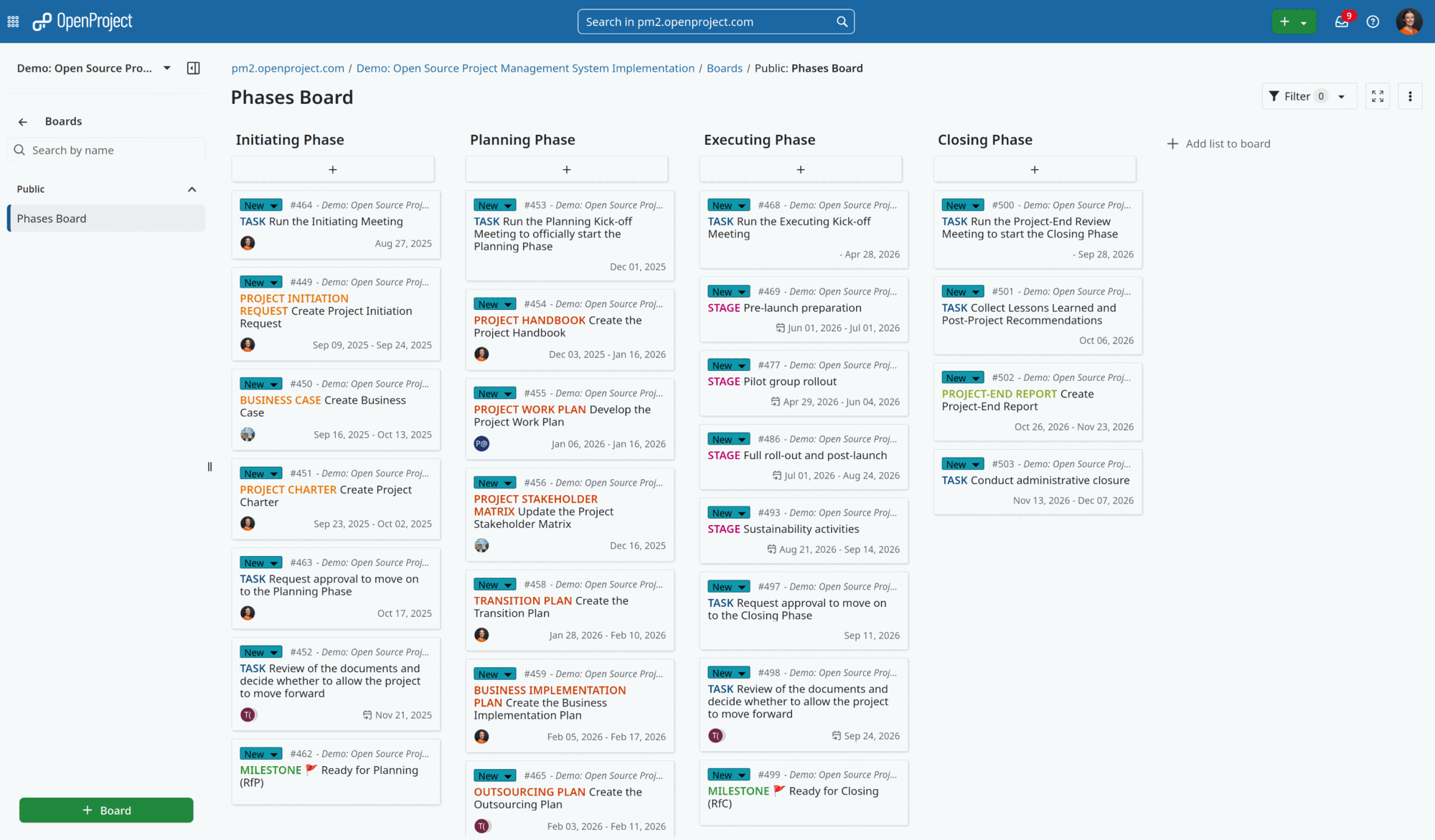
- Phases board presenting split of tasks into different phases.
- Assignee board with automated columns based on assigned users. Ideal for dispatching work packages.
- Basic Kanban style board with columns for status such as To Do, In Progress, Done.
How to use OpenProject in order to effectively plan PM²-based meetings?
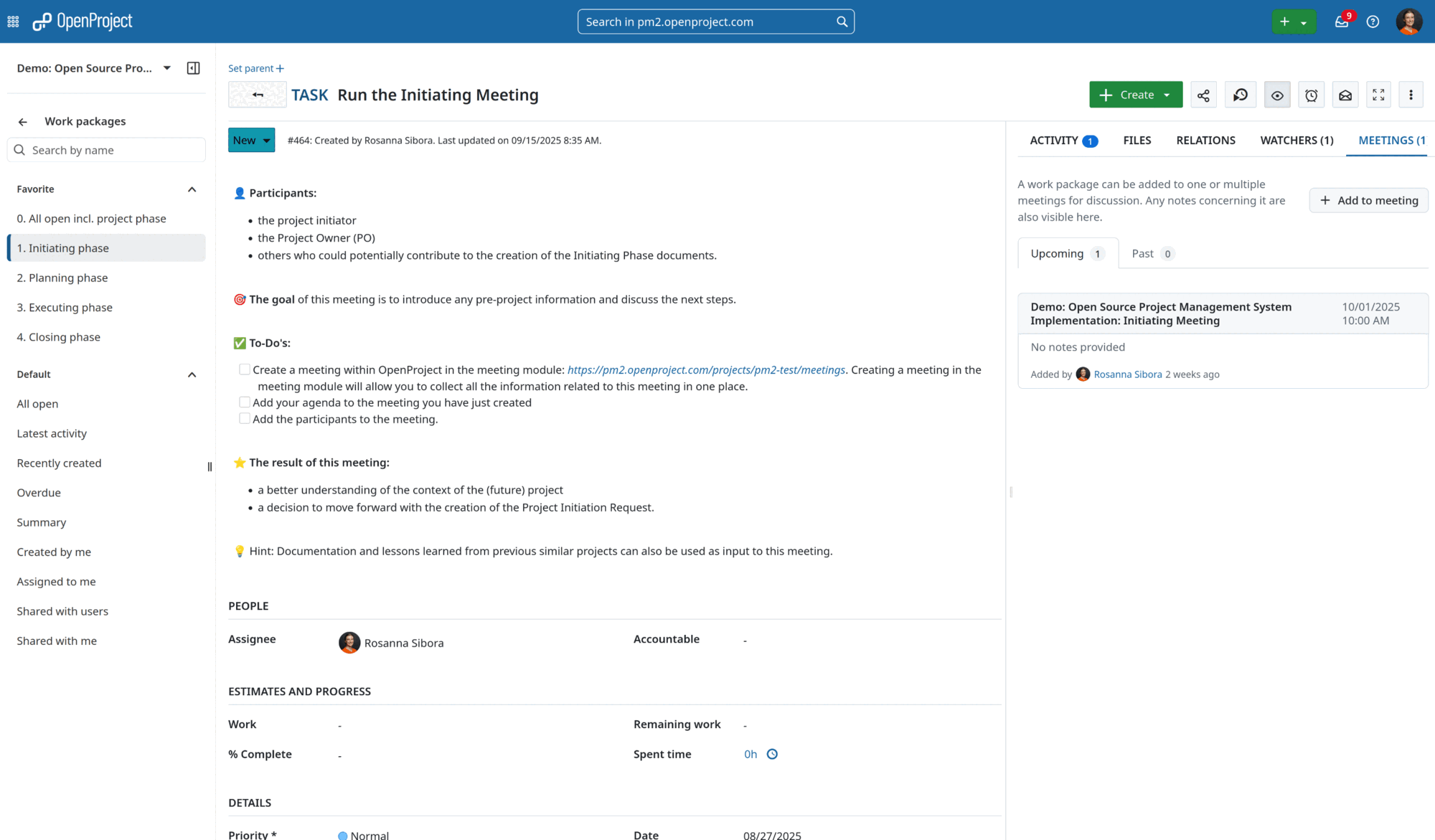
PM² methodology suggests to run certain meetings in order to achieve clarity and alignment (e.g. Initiating Meeting, Planning Kick-off Meeting, Executing Kick-off Meeting).
The meetings module in OpenProject allows you to manage and document your PM² project meetings, prepare a meeting agenda together with your team, add work packages to the agenda and share minutes with attendees - all in one central place.
How does OpenProject support project governance and reporting?
PM² emphasizes accountability, transparency, and stakeholder communication, which OpenProject supports through:
- Project overview for real-time phase and artefact status
- Custom reporting aligned with PM² governance requirements
- Time tracking for capacity management and phase effort analysis
- Stakeholder communication through automated notifications and status updates
- PMflex Artefact PDF export for sharing structured artefacts with users without OpenProject access
Here for you now
OpenProject is a powerful and highly-configurable tool that can be customized to fit the needs of your PM² implementation. Beyond the basics covered in this guide, OpenProject has many additional features and modules (such as budgets, time and cost tracking, wiki and file storage integrations) that further enable your PM² teams to work efficiently and deliver value.
If you have questions about how to use and configure OpenProject to work for you, please get in touch or start a free trial to see for yourself.