Migrating from Jira to OpenProject
Last edited on: August 21, 2026.
The OpenProject team is actively developing the Jira Migrator, an import tool for Jira Data Center. This feature is under active development. We release new features with every release. Information on this page may change as new migration options become available.
Take a look at this video introducing the Jira Migrator.
Purpose of the Jira Migrator
With the end of life for Jira Data Center, many organizations are evaluating OpenProject as a secure, open-source, and self-hosted alternative for project management and collaboration.
Warning
This feature is under active development. Please only use it in test setups. We inform you about our progress and our recommendations when you can use it in production setups.
For concise answers to common questions, see the Jira migration FAQ.
Data covered by the Jira Migrator
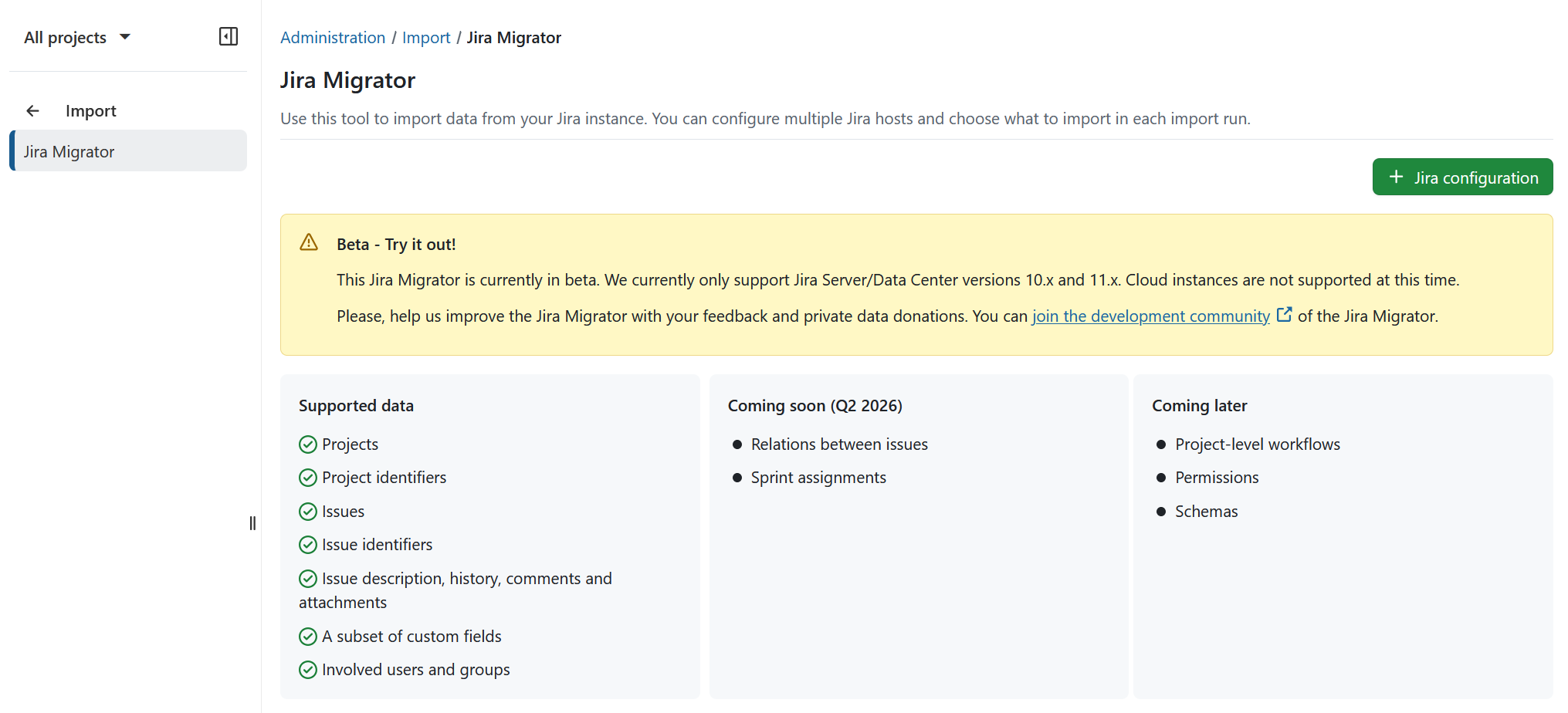
This import tool is currently in beta and can only import basic data:
- Projects
- Project identifiers
- Issues
- Issue identifiers (Beta, see Work package identifiers)
- Basic custom fields (see Custom fields migration)
- Users
- Statuses
- Types
See field mapping reference for details.
Data not yet covered by the Migrator
Coming soon
- Relations between issues
- Sprint assignments
Coming later
- Project-level workflows
- Permissions
- Schemas
See field mapping reference for details.
Supported Jira versions
- We currently only support Jira Data Center versions 10.x and 11.x.
- Cloud instances are not supported at this time.
Import preparation
Prepare a backup
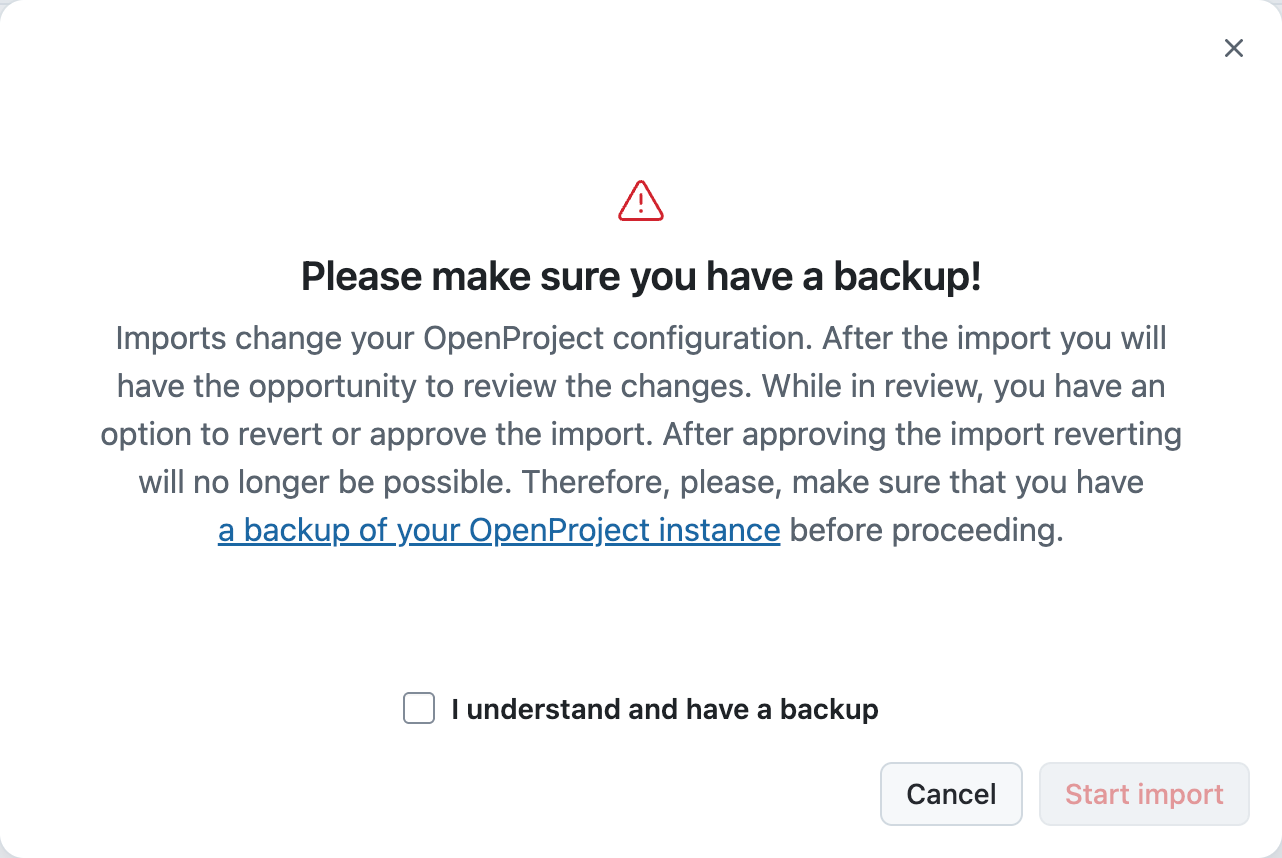
Imports change your OpenProject configuration. After the import you will have the opportunity to review the changes. While in review, you have an option to revert or approve the import. After approving the import, reverting will no longer be possible. Therefore, please make sure that you have a backup of your OpenProject instance before proceeding.
Set up the API connection
Navigate to Administration → Import. To create a new import configuration, click the + Jira configuration button.
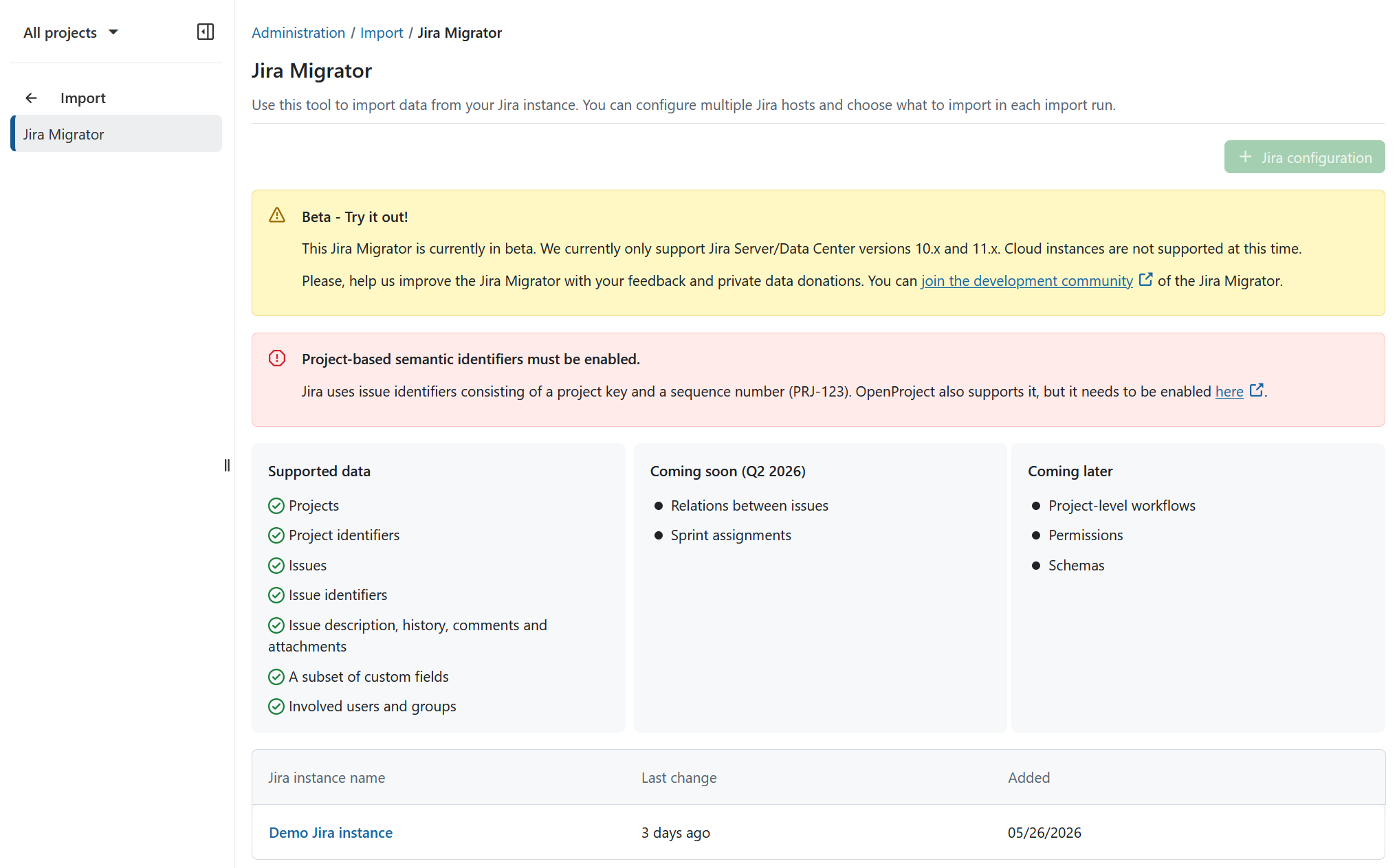
Important
To activate the configuration you need to activate project-based semantic identifiers on the OpenProject side first. If not yet active, you will see a warning banner. Once activated, the button will become selectable.
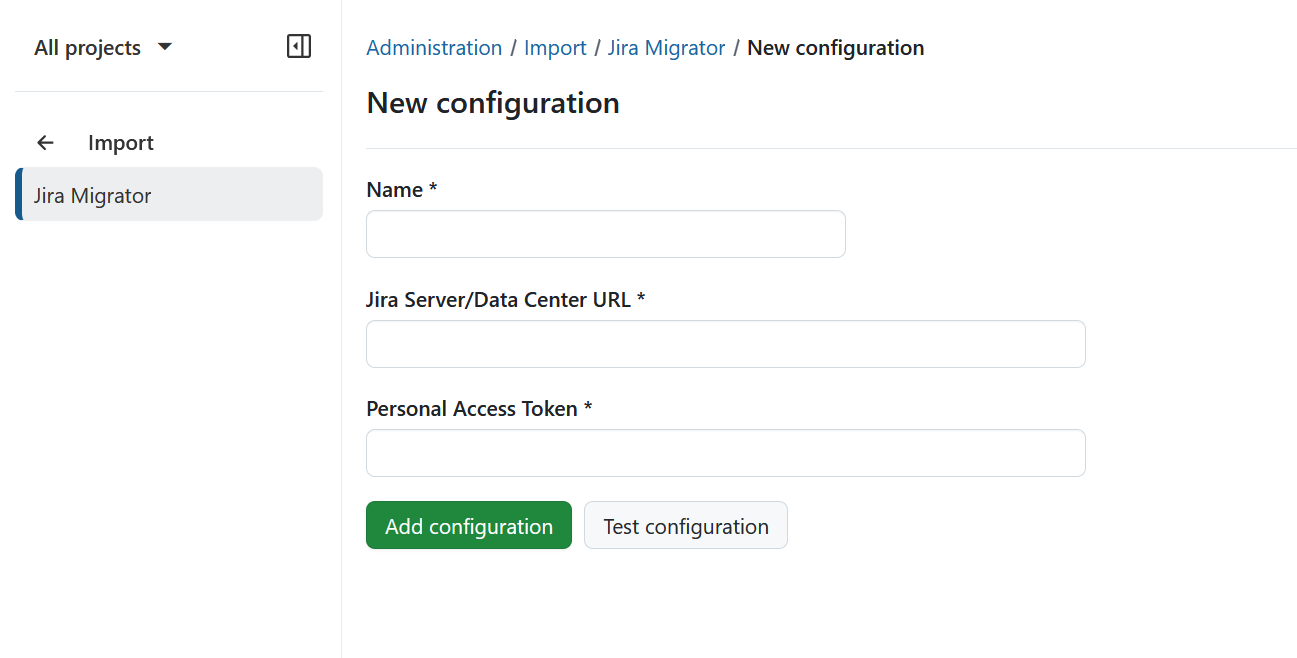
Provide the following details:
- A name for the import configuration
- Your Jira URL
- A Personal Access Token. The migration tool requires a token with admin permissions. Otherwise, you will get a 403 error during the import process.
Test configuration
Click Test configuration to verify the connection.
 If the connection is successful, a confirmation banner will appear.
Important
If your Jira instance is hosted on a private or internal network (e.g., a corporate intranet), the connection test may fail because OpenProject blocks outbound requests to non-public IP addresses by default. This is a security measure to prevent SSRF attacks. To allow connections to internal IP addresses, configure the
OPENPROJECT_SSRF__PROTECTION__IP__ALLOWLISTenvironment variable. See SSRF protection for details.
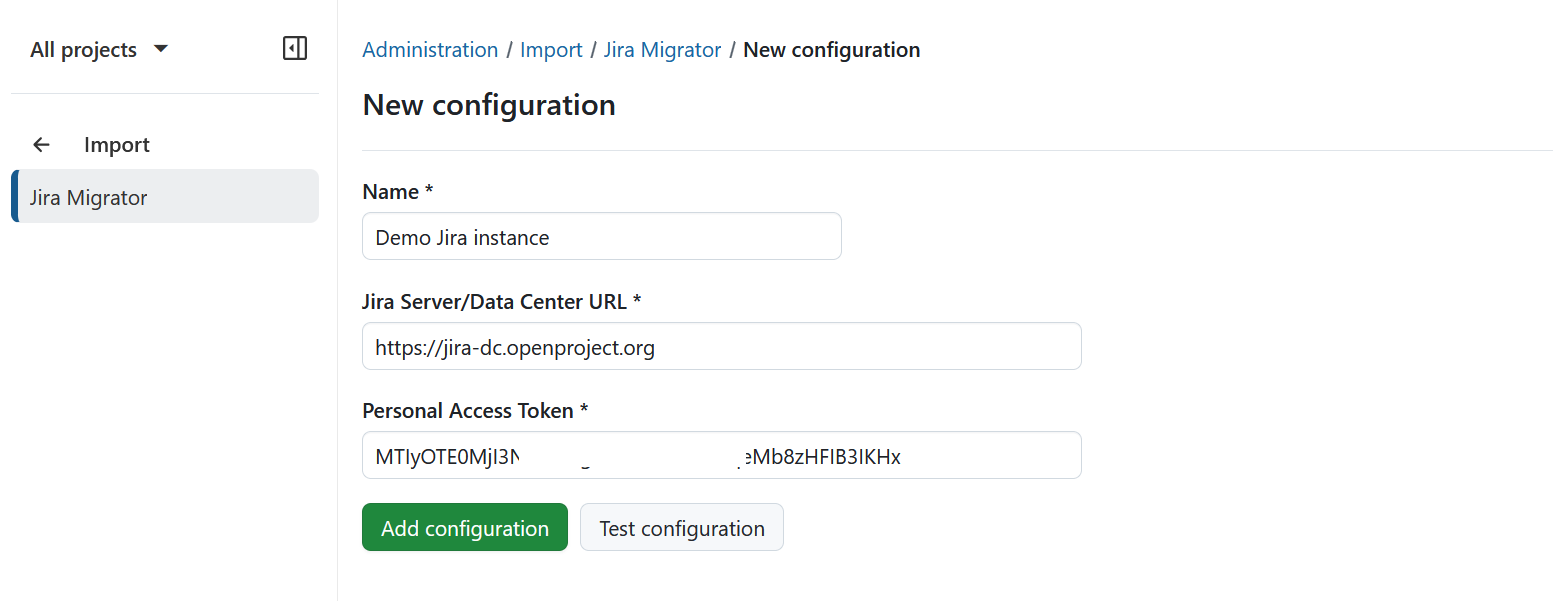
Click Add configuration to proceed to the import runs overview. Initially, no import runs will be listed.
Import run
You can import different sets of data with each import run. It is possible to undo an import run while it is in review mode, but not after approving.
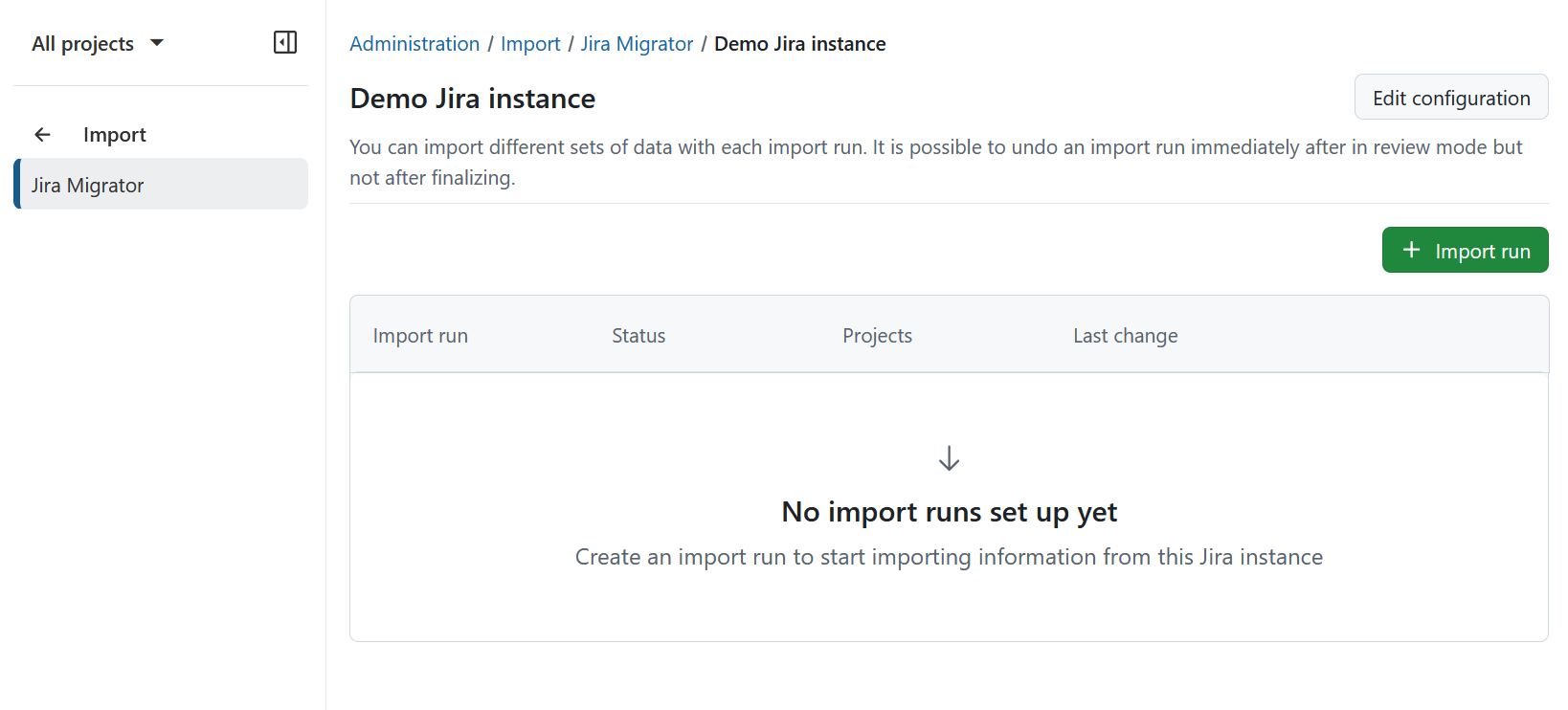
Click Import run to start a new import.
Check available data
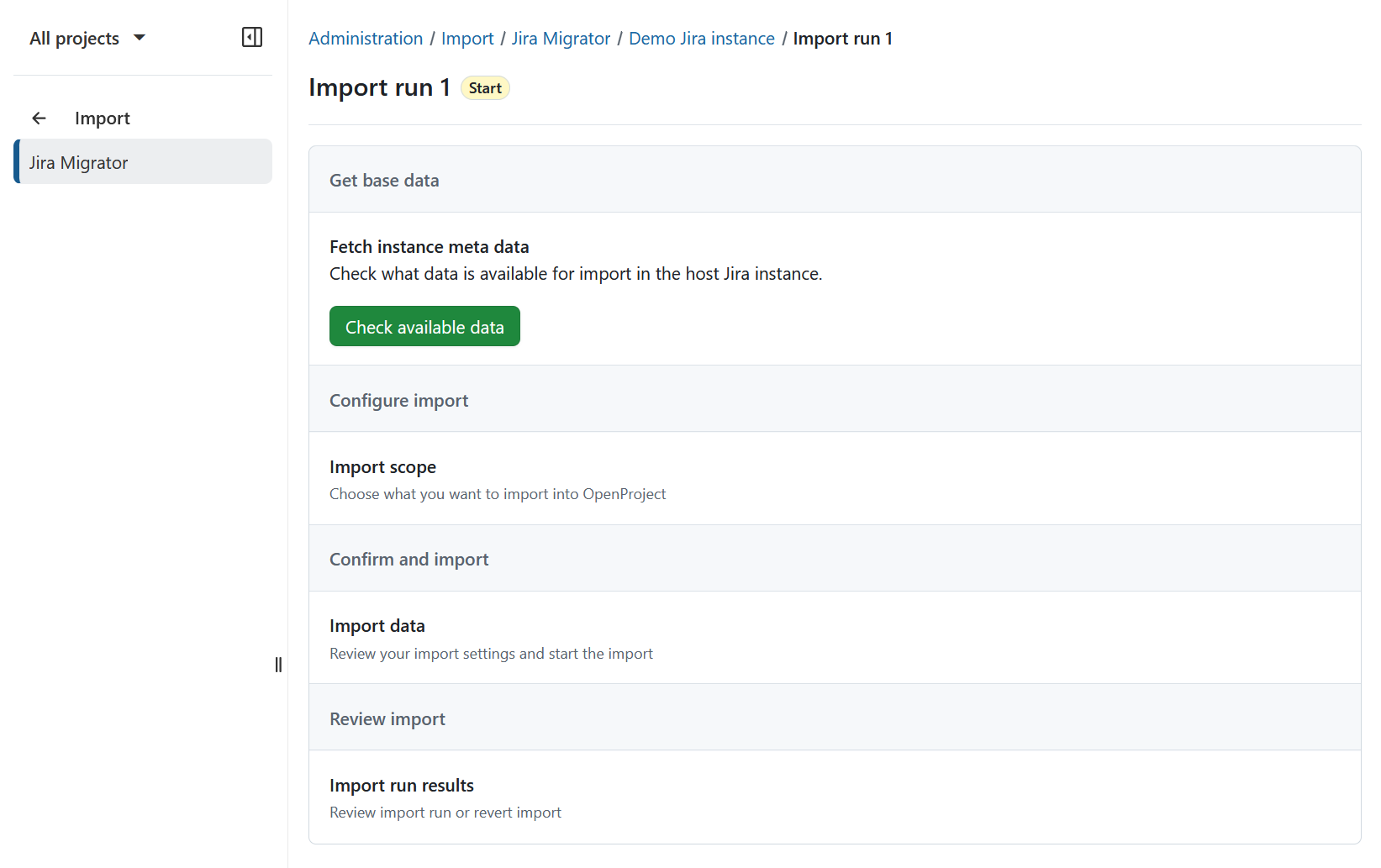
In the Get base data section, click Check available data to retrieve metadata from your Jira instance.
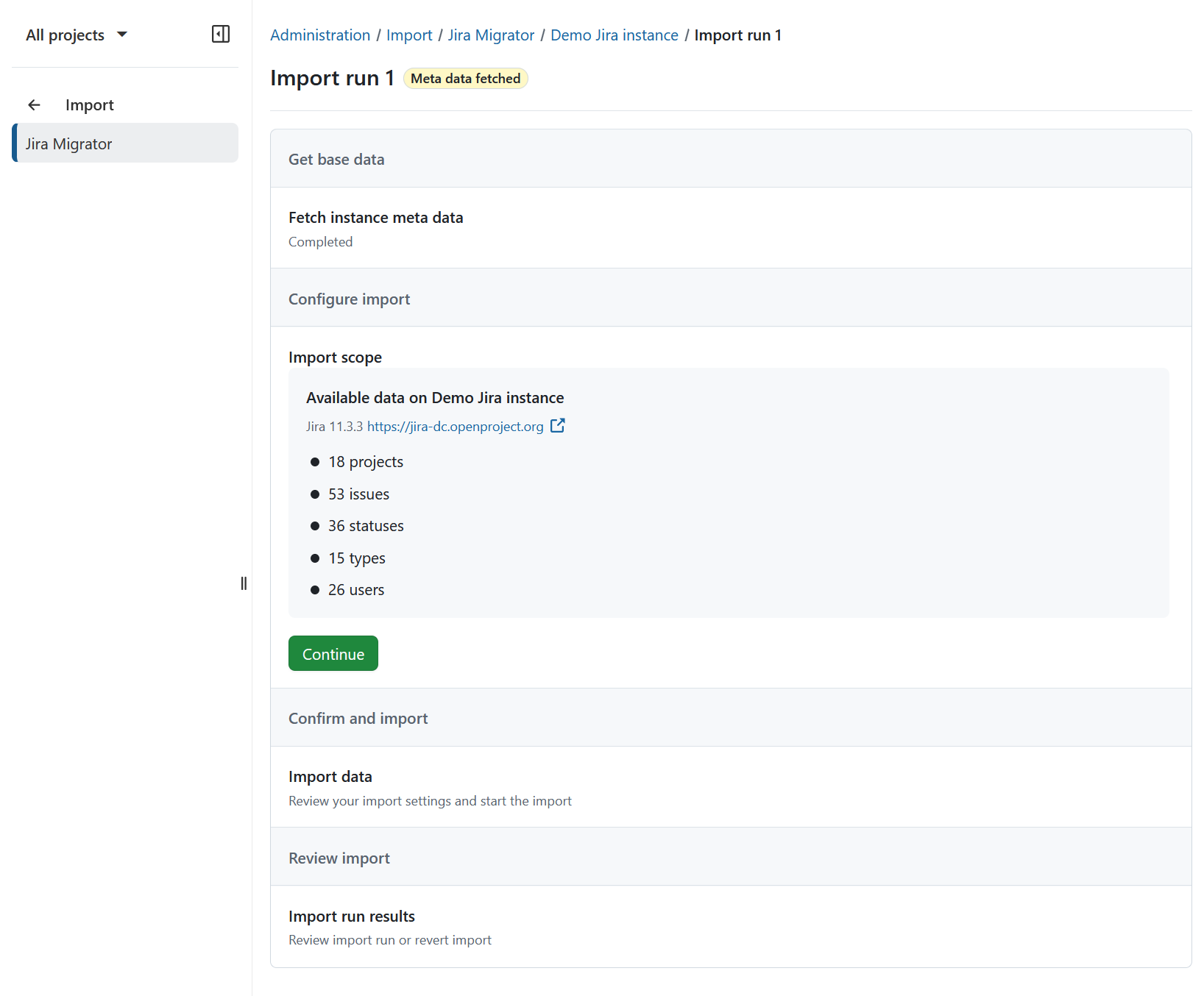
Once fetched, you will see which data can and cannot be imported. Click Continue.
Configure import
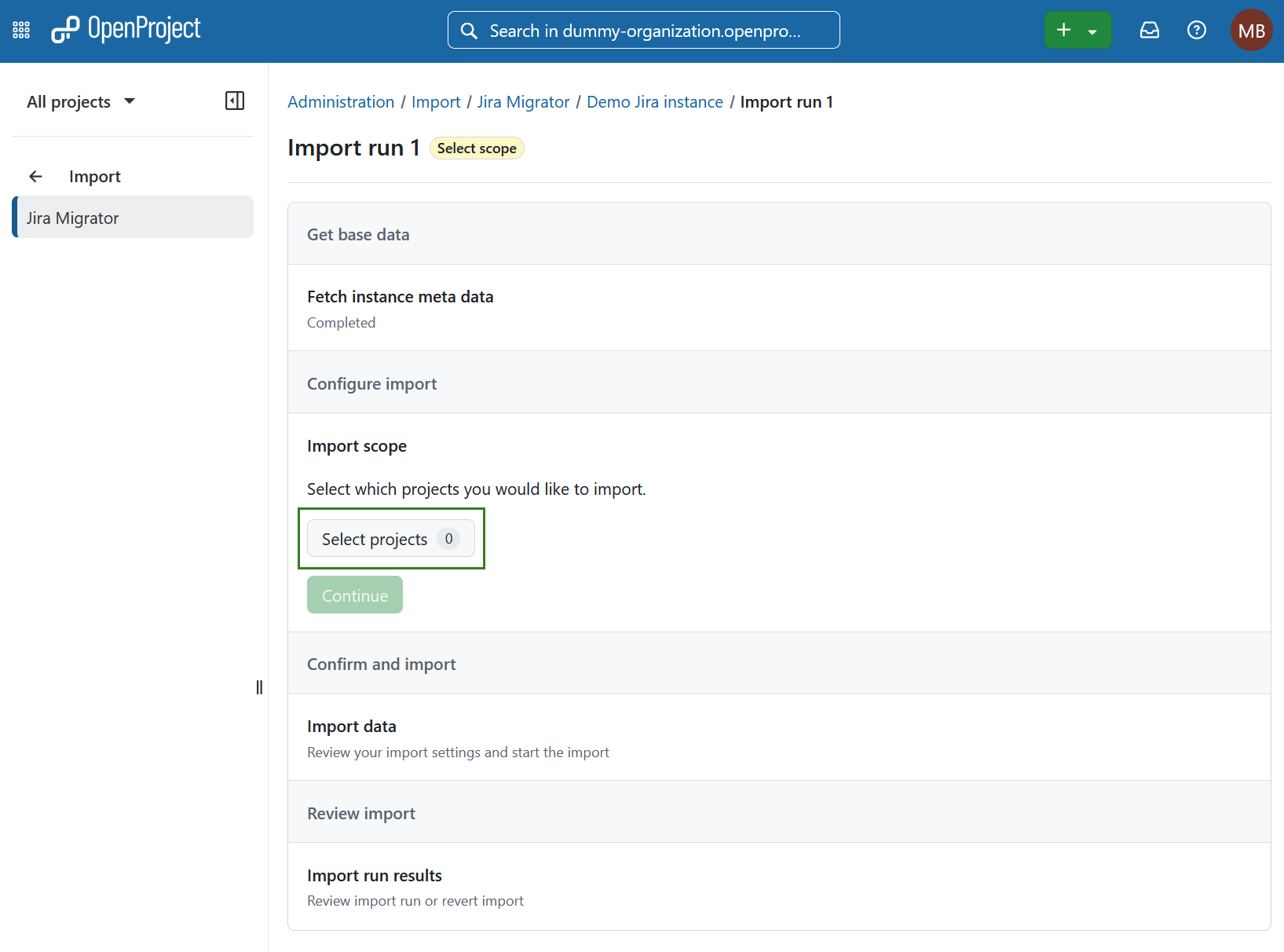
Select projects
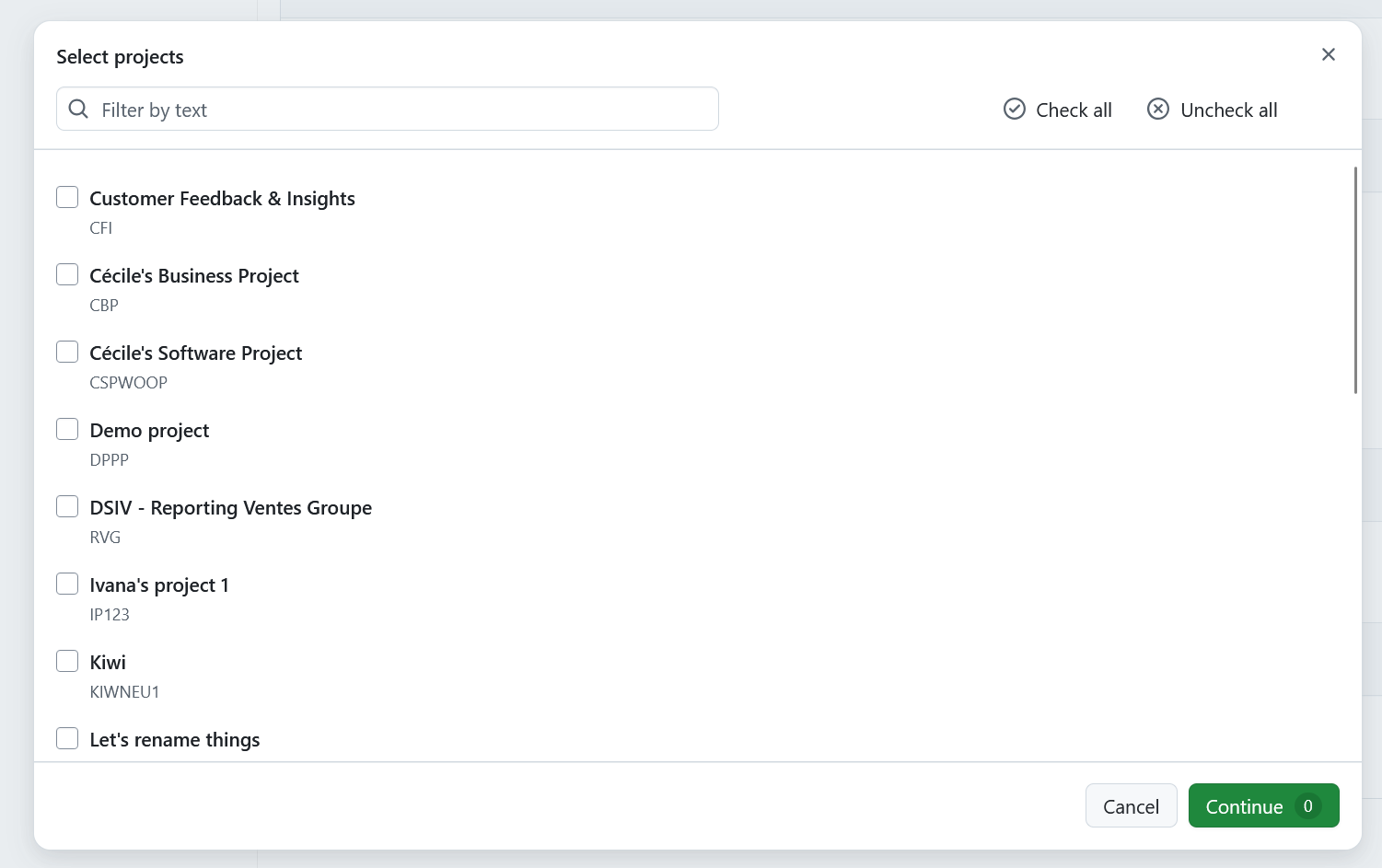
Next, select the projects you want to import. Click Select projects.
In the modal dialog, choose one or more projects and confirm by clicking Continue.
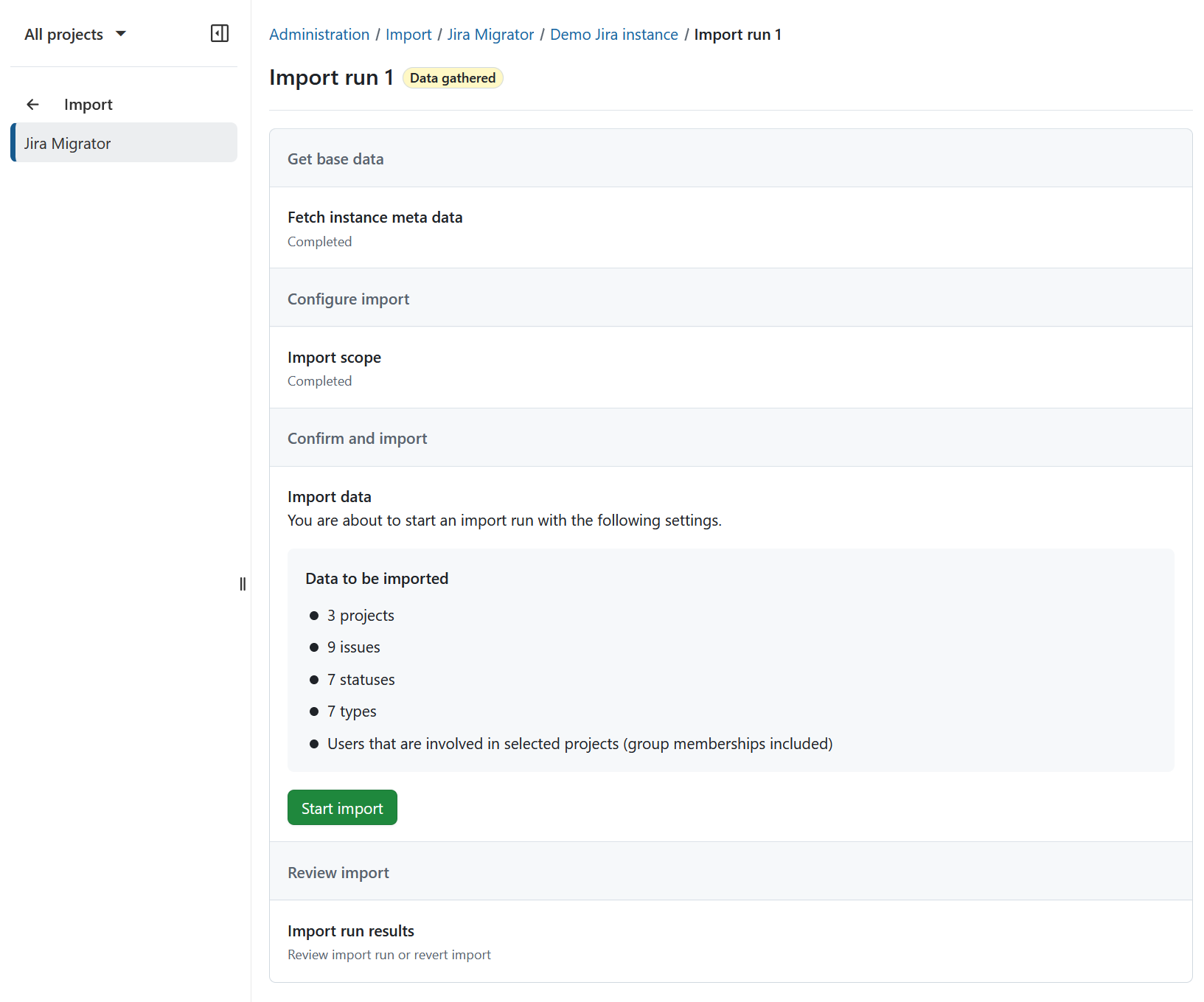
Start import
Click Start import to begin the import process.
A warning dialog will appear. Confirm that you understand the limitations (e.g., incomplete feature coverage, recommendation to avoid production use, and the need for backups). Select I understand and click Start import.
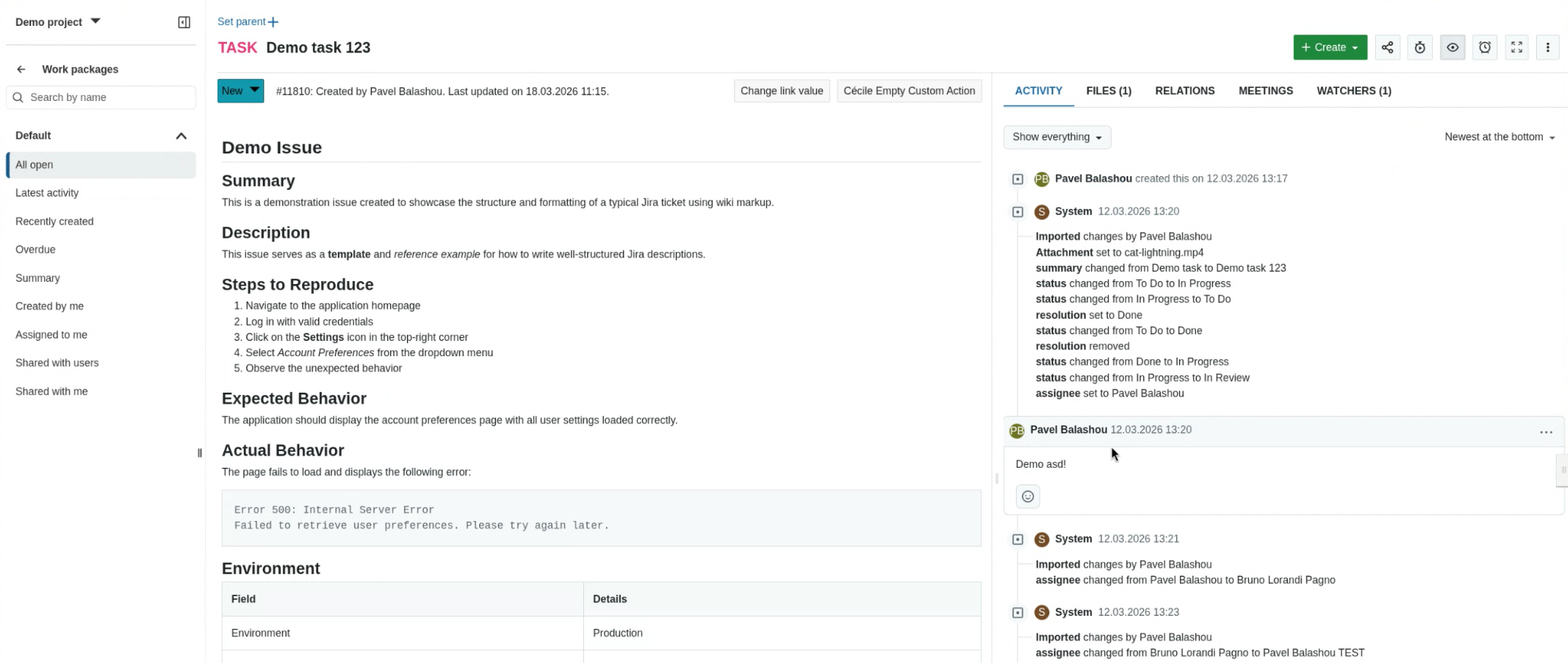
During import, Jira wiki markup is automatically converted to OpenProject’s markdown format.
Tip
If a user already exists in OpenProject from a previous import, they will not be duplicated.
Review import
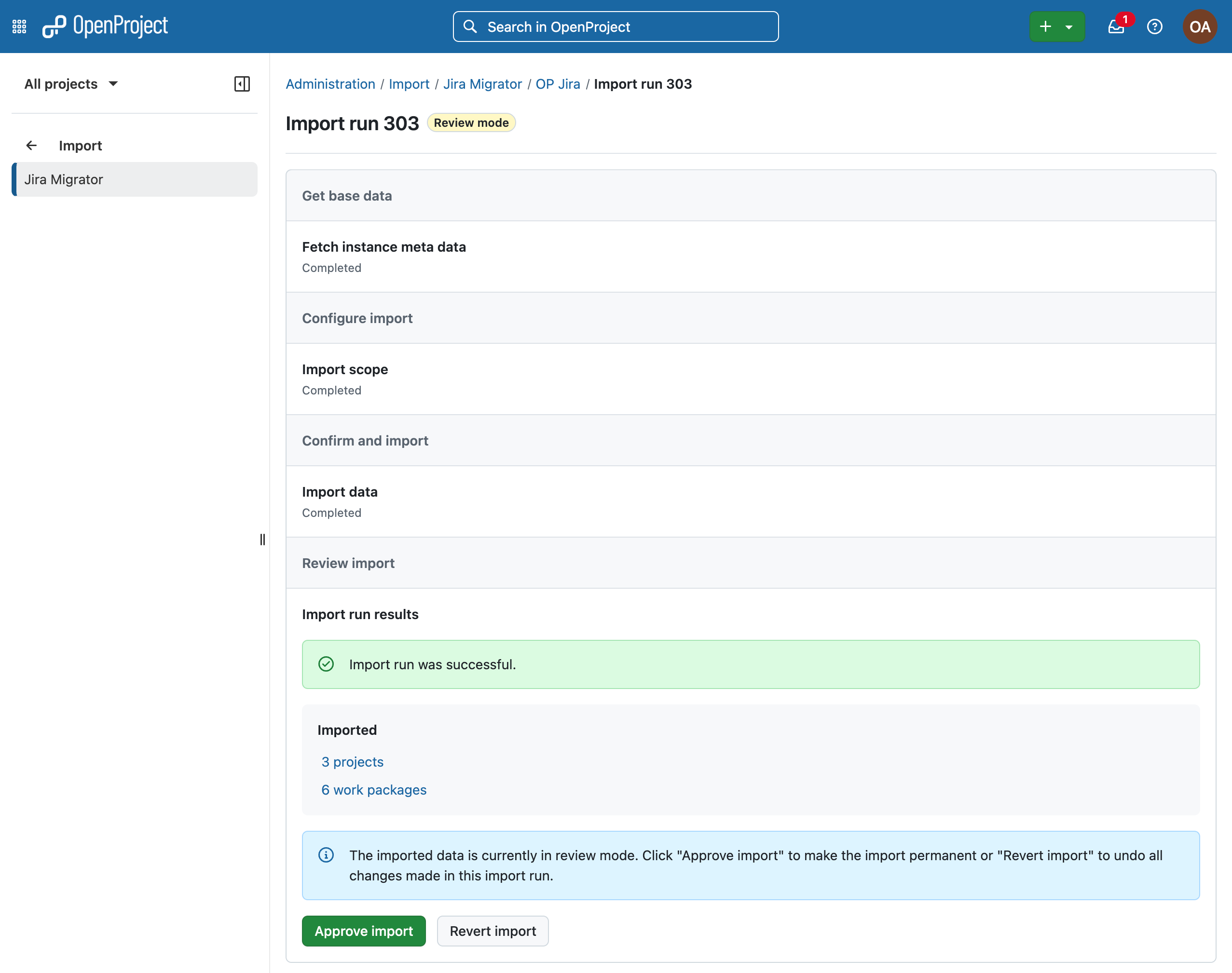
After the import completes, the data is available in review mode. You can:
- Inspect imported projects and work packages
- Validate data integrity
- Decide whether to approve or revert the import
Approve or revert the import
To proceed, choose one of the following actions: Approve or revert the import.
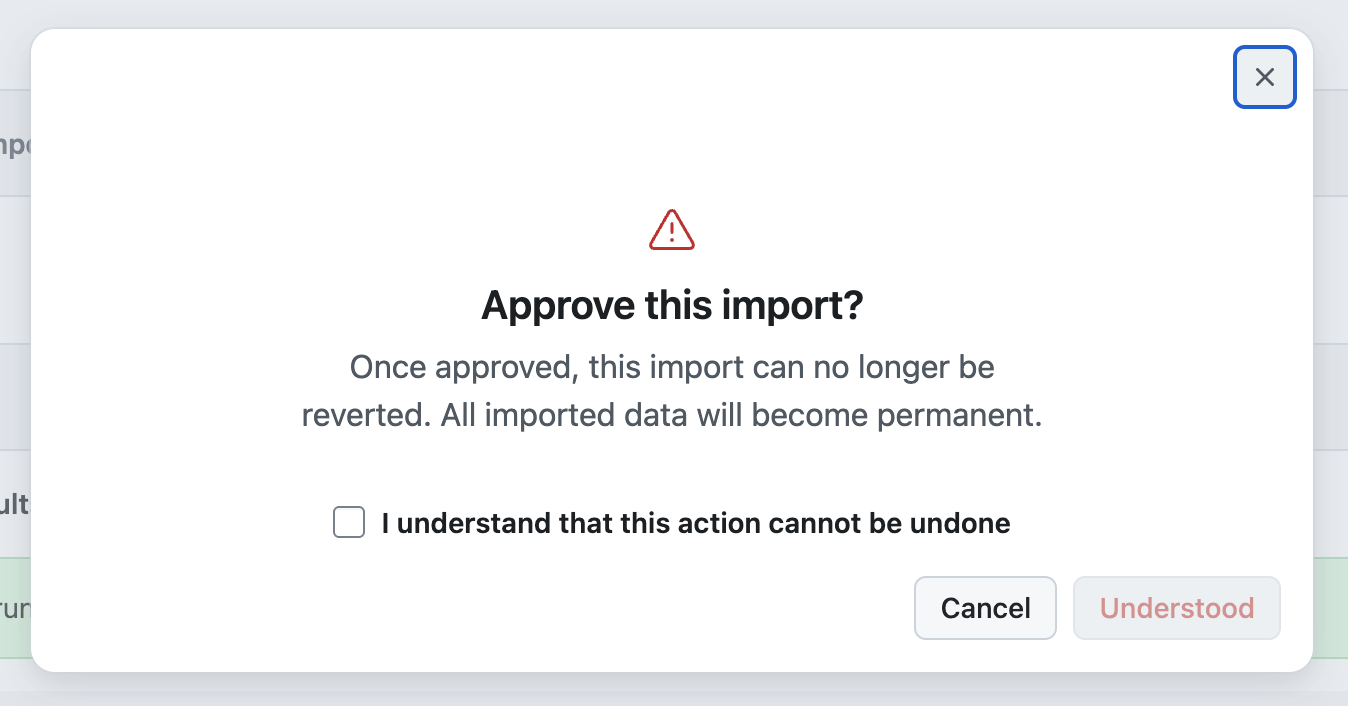
Approve import
- Activates newly created users
- Makes imported data permanent
- Disables the option to revert the import
A confirmation warning will be shown before proceeding.
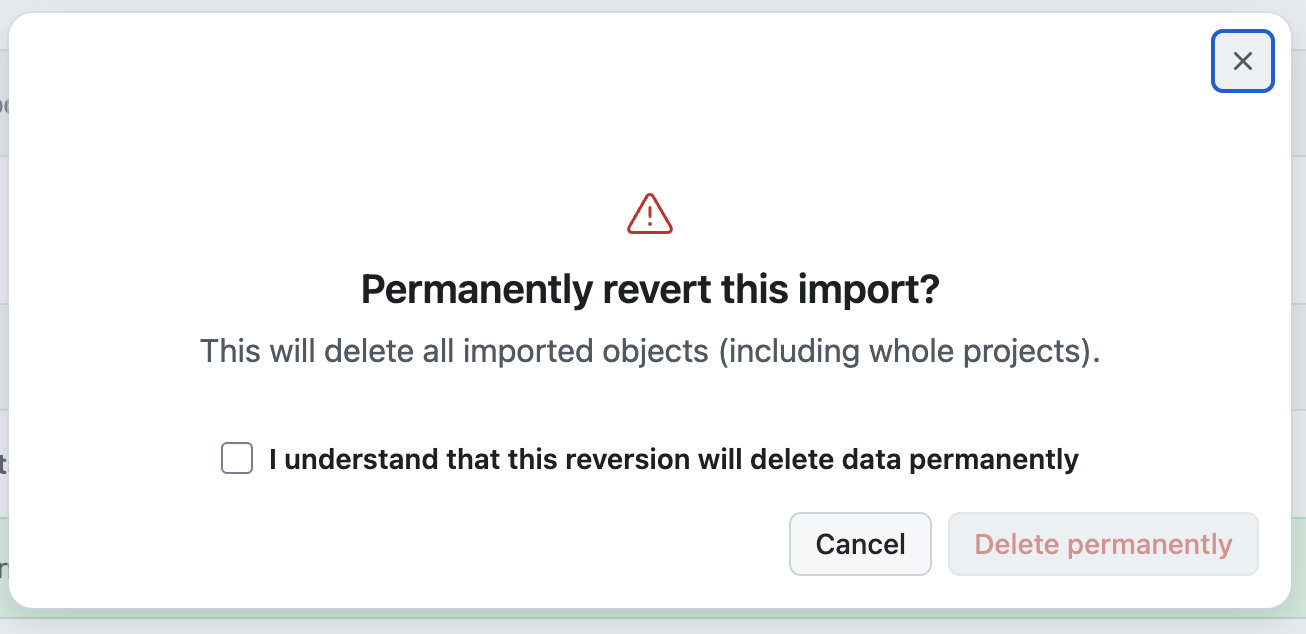
Revert import
- Removes all data created during the current import run
- Does not affect data from previous import runs
A confirmation warning will also be shown.
Note
During review mode, any newly created users remain locked until the import is approved.
Best practices for Jira migrations
1. Preparation
- Review the Jira Pre-Migration checklist.
2. Testing
- Set up a test instance of OpenProject.
- Migrate a small subset of data using one of the methods described above.
- Verify field mappings, attachments, and relationships.
3. Execution
- Perform the full migration after successful testing.
- Validate data integrity after import.
- Recreate workflows, permissions, and boards in OpenProject as required.
4. Post-migration
- Review the Jira Post-Migration checklist.
- Provide training to users.
- Archive or decommission the legacy systems if applicable.
Current status and next steps of the Jira Migrator
You can follow the progress of OpenProject’s Jira migration stream and provide feedback.