Roles and permissions
Users
A user is any individual who can log into your OpenProject instance.
Permissions
Permissions control what users can see and do within OpenProject. Permission are granted to users by assigning one or more roles to the users.
Roles
A role bundles a collection of permissions. It is an convenient way of granting permissions to multiple users in your organization that need the same permissions or restrictions.
A user can have one or more roles which grant permissions on different levels.
Administrator
Administrators have full access to all settings and all projects in an OpenProject environment. The permissions of the Administrator role can not be changed.
| Scope of the role | Permission examples | Customization options |
|---|---|---|
| Application-level: Full control of all aspects of the application | - Assign administration privileges to other users - Create and restore backups in the web interface - Create and configure an OAuth app - Configure custom fields - Archive projects/restore projects - Configure global roles - Configure project roles | Cannot be changed |
Global role
Global roles allow administrators to delegate administrative tasks to individual users.
| Scope of the role | Permission examples | Customization options |
|---|---|---|
| Application-level: Permissions scoped to specific administrative tasks (not restricted to specific projects) | - Manage users - Create projects | Administrators can create new global roles and assign global permissions to those role |
Project role
A project role is a set of permissions that can be assigned to any project member. Multiple roles can be assigned to the same project member.
Hinweis
If a module is not enabled in a project it is not shown to a user despite having a permission for it.
| Scope of the role | Permission examples | Customization options |
|---|---|---|
| Project-level: Permissions scoped to individual projects (a user can have different roles for individual projects) | - Create work packages (in a project) - Delete wiki pages (in a specific project) | Create different project roles with individual permission sets |
Non-member
Non member is the default role of users of your OpenProject instance who have not been added to a project. This only applies if the project has been set as public in the project settings.
Hinweis
The Non-member role cannot be deleted.
| Scope of the role | Permission examples | Customization options |
|---|---|---|
| Project-level: Permissions scoped to individual projects for users which are logged in | - View work packages for users that are logged in | Assign different permissions to the role Non-member |
Anonymous
OpenProject allows to share project information with anonymous users which are not logged in. This is helpful to communicate projects goals and activities with a public community.
Hinweis
This only applies if you disabled the need for authentication for your instance and if the project is set as public. The Anonymous role cannot be deleted.
| Scope of the role | Permission examples | Customization options |
|---|---|---|
| Project-level: Permissions scoped to individual projects for users which are not logged in | - View work packages for users that are not logged in | Assign different permissions to the role Anonymous |
Standard
Standard is the default role of users of your OpenProject instance. It is configured by administrators on the instance level.
Hinweis
The Standard role cannot be deleted and it is applied to every user on the instance. Users cannot be assigned to, or unassigned from this role. Per default no permissions will be selected. Please adjust the permissions yourself.
| Scope of the role | Permission examples | Customization options |
|---|---|---|
| Application-level: Permissions scoped to specific administrative tasks (not restricted to specific projects) | - View user’s mail addresses | Assign different permissions to the role Standard |
Customize roles with individual permissions
Administrators can add new roles with custom permissions or configure existing ones in Administration > Users and permissions > Roles and permissions.
Permissions report
The permissions report is a good starting point to get an overview of the current configuration of roles and permissions. To open the permissions report, navigate to Administration > Users and permissions > Permissions report.
Create a new project roles
Administrators can create new project roles in Administration > Users and permissions > Roles and permissions. Click on the green +Role button to create a new role.
Complete the following steps:
- Name: must be a new role name.
- Global role: create a new global role.
- Copy workflow from: select an existing role and copy the respective workflow to the newly created role.
- Permissions: you can grant permissions which define what the user with the respective role can see and do in the project scope. The permissions are grouped based on the modules.
To create the new role, click on the grey Create button at the bottom of the page.
Create a new global role
Administrators can create new global roles in Administration > Users and permissions > Roles and permissions. In the creation form check the box Global role.
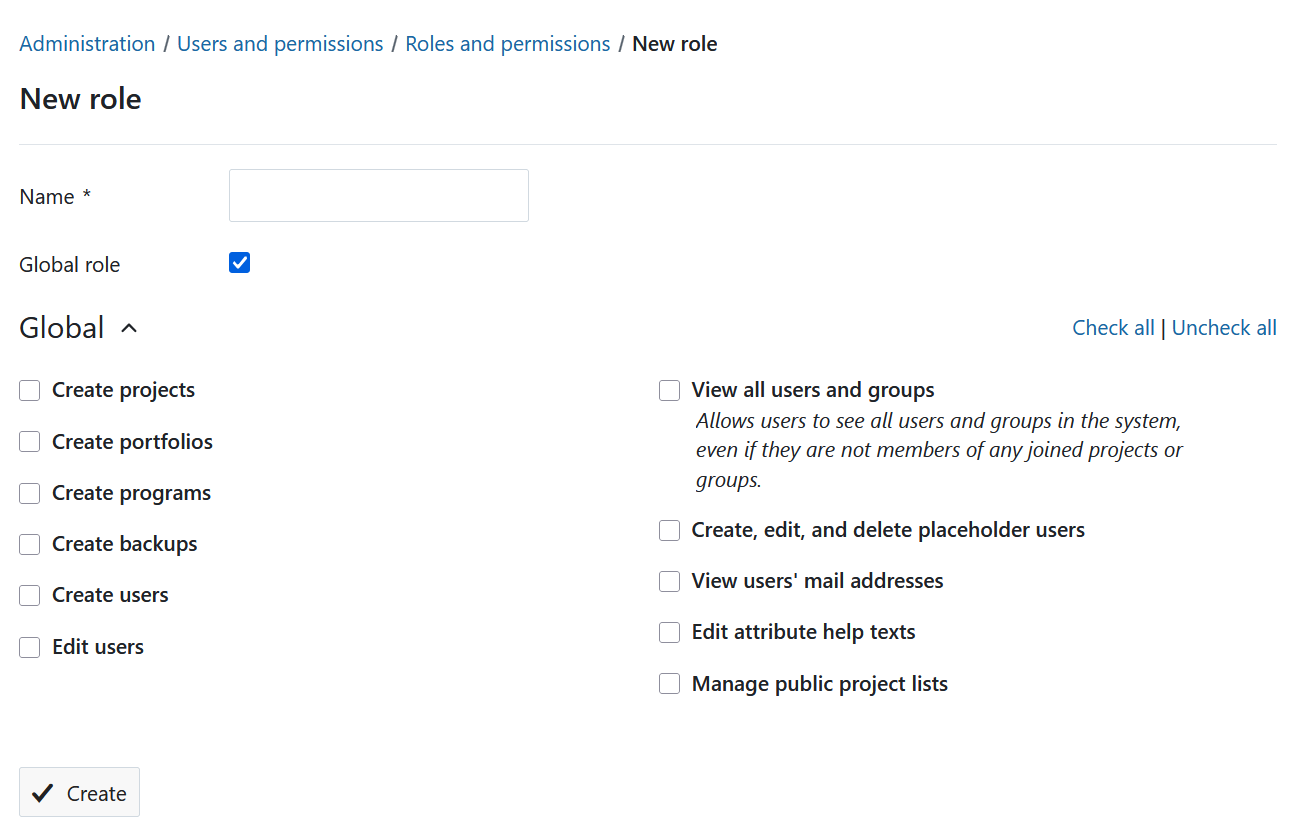
The form shows the available global permissions which can be assigned to the new global role. They include:
Tipp
To create a subproject for an existing project the project permission “Create subprojects” is also required.
-
Create portfolios
-
Create programs
Hinweis
This allows administrators to delegate the administration of users to other people that should not have full control of the entire OpenProject installation (Administrator). These users can edit attributes of any users, except administrators. This means they are able to impersonate another user by changing email address to match theirs. This is a security risk and should be considered with caution.
- View all users and groups
Hinweis
This allows administrators to allow the visibility of all users in the system. When this global permission is not assigned, project administrators only see:
- users who share a project with them,
- users in the same groups as them, or
- users they explicitly invite by email (if permitted).
Hinweis
Users with this global permission cannot automatically see and edit all placeholder user in all projects. It is restricted to the placeholder users in projects in which the user has the respective permission to see or edit project member.
- View all users’ mail addresses
- Edit attribute help texts
- Manage public project lists
Edit and delete roles
To edit an existing role, click on the role name in the roles overview table. Make your changes and save the update by clicking on the Save button at the bottom of the overview page.
To delete an existing role click on the delete icon next to a role in the list.
Wichtig
Roles that are assigned to a user cannot be deleted.