Install and log in
Follow these steps to install and start using the OpenProject Mobile app.
1) Check the requirements
Before downloading the app, ensure your setup meets these prerequisites:
- An active OpenProject account: Either an OpenProject Cloud workspace or an OpenProject on-premises installation with API access enabled.
- HTTPS with a signed certificate (required): Your instance must use https (not http) with a signed certificate to log in.
- Minimum OpenProject version: 17.0.0
- Minimum system requirements
- iOS: 15 or later
- Android: 12 or later
- Built-in OAuth applications enabled: Make sure built-in OAuth applications are enabled in your administration settings:
{BASE_URL}/admin/oauth/applications. This is required for successful login from the mobile app.
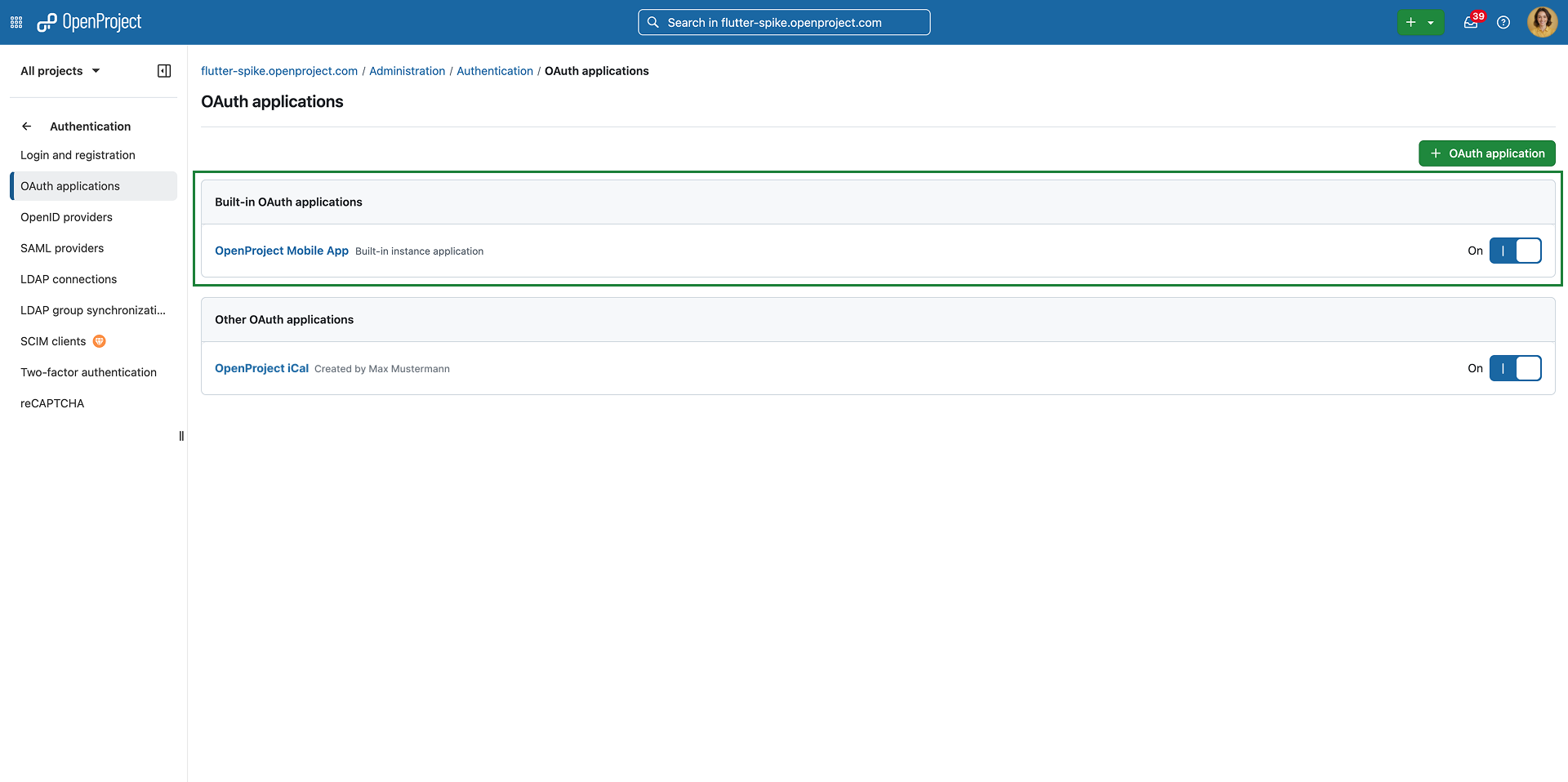
Nota
If you have an earlier OpenProject version, an administrator may need to enable the Built in OAuth applications flag under
{BASE_URL}/admin/settings/experimental.
2) Download the app
The OpenProject Mobile app is available for both major platforms:
- iOS: App Store link.
- Android: Google Play link.
You can also search for “OpenProject” in your device’s app store.
3) Open the app
After installation:
- Open the app on your device.
- Review the short onboarding introduction.
- Proceed to the login screen to connect to your OpenProject instance.
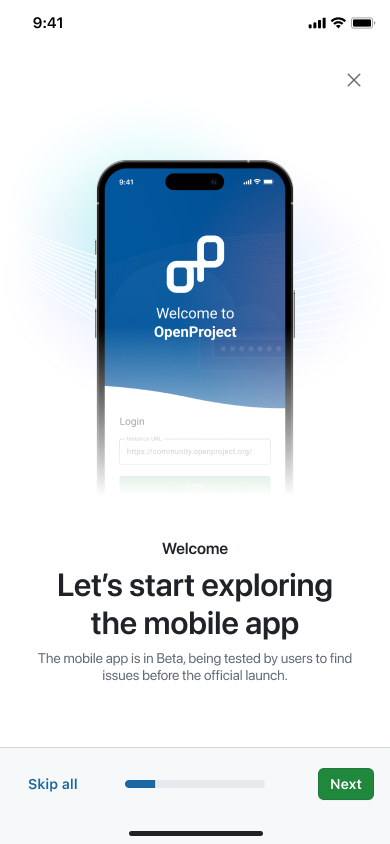
4) Choose your instance
Enter the complete base URL of your OpenProject instance, for example: https://yourcompany.openproject.com
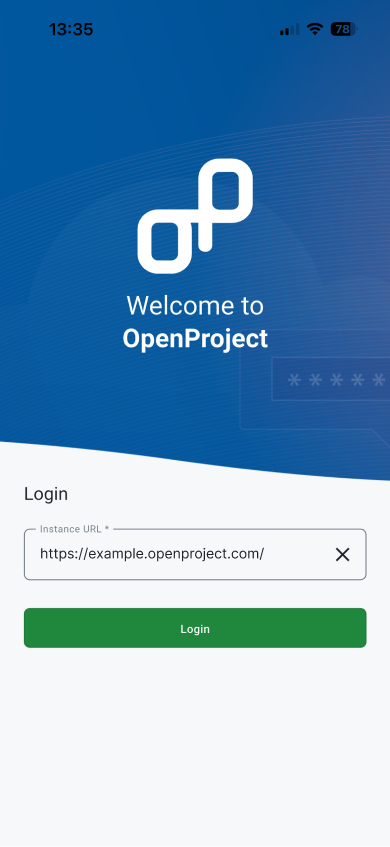
5) Log in with your credentials
- After your instance is confirmed, log in using your OpenProject username and password in the browser modal that opens.
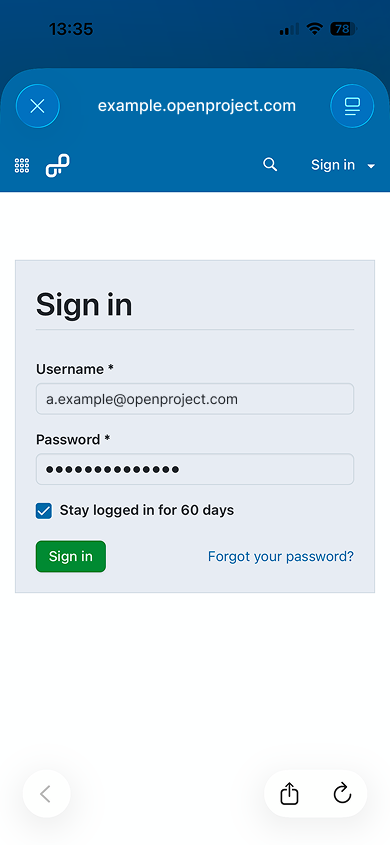
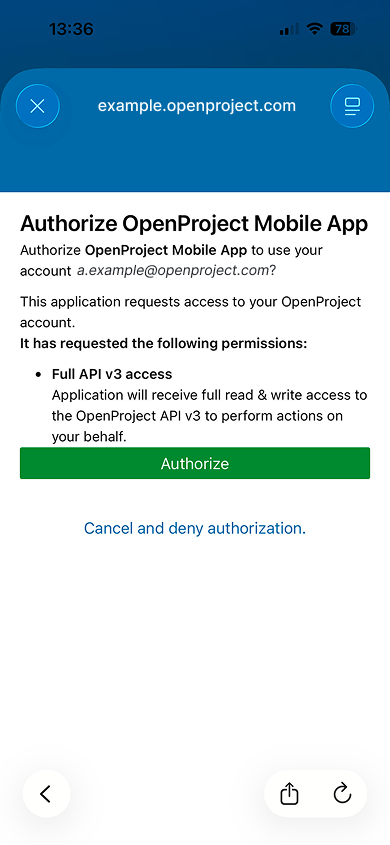
- When prompted, allow access so the app can connect securely to your workspace via the OpenProject API v3.
6) Start exploring
Once you’re logged in, you can start using key mobile workflows, including:
- View and edit work packages
- Comment and reply to discussions
- Organize your work in your own home dashboard
- Check all your work projects and spaces
- Create and track meetings quickly
- Log time and run focus timers