As teams grow and processes become more complex, it can be difficult to keep track of which work package everyone is referring to in a meeting or comment. Searching for the right work package quickly becomes a real time drain. If this sounds familiar, linking work packages might be a game-changer for your team.
In this article, we will walk you through one of OpenProject’s most beloved functions and show you how you can use it directly in your everyday work.
- Why link work packages
- How to link a work package
- Where does linking work?
- Examples of work package links
- How linking differs from relations and macros
- Conclusion
Why link work packages?
Work packages are at the very core of OpenProject. They represent what teams are working on, have completed, are considering, or are struggling with. The different types of work packages mean that they can represent not only tasks but also ideas, milestones, or events. A lot of communication happens around work packages – about changes, progress, reviews, and new ideas. Because this communication is spread across messages, meetings, comments, and more, work packages quickly become the reference point your whole team keeps coming back to. And as your team grows, making sure everyone is looking at the same work package becomes a daily friction point. OpenProject offers a simple yet effective solution for this: creating links to work packages from anywhere in the application to access them directly.
This functionality speeds up your day-to-day tasks by making work packages easy to reference and cutting down on clicks and searching. It provides a more intuitive way to navigate the different sections of OpenProject, also making the application more accessible to newcomers.
How to link a work package
Remarque
OpenProject has two editors: BlockNote is used for documents, and CKEditor is used for everything else. Linking work packages works in both, even though they behave slightly differently. We are working towards providing a single, consistent editor across OpenProject.
To link a work package, type a “#” followed directly by the name or ID of the work package. As shown below, this opens a brief overview of matching work packages. The number of hashtags used controls how much information is displayed in the link:
- “#” displays the clickable ID
- “##” displays the clickable ID and Name
- “###” displays the clickable ID, Name, Type, Status and start and end dates, if provided
The link will appear immediately. Clicking the link will open the work package. Hovering over the link provides you with a quick preview in an overlay. Please note that linking work packages by using ‘#’ does not create a relation to the work package, nor can the link display more attributes than the ones mentioned above. Read more on that in section “How linking work packages with ‘#’ differs from relations and other macros”.
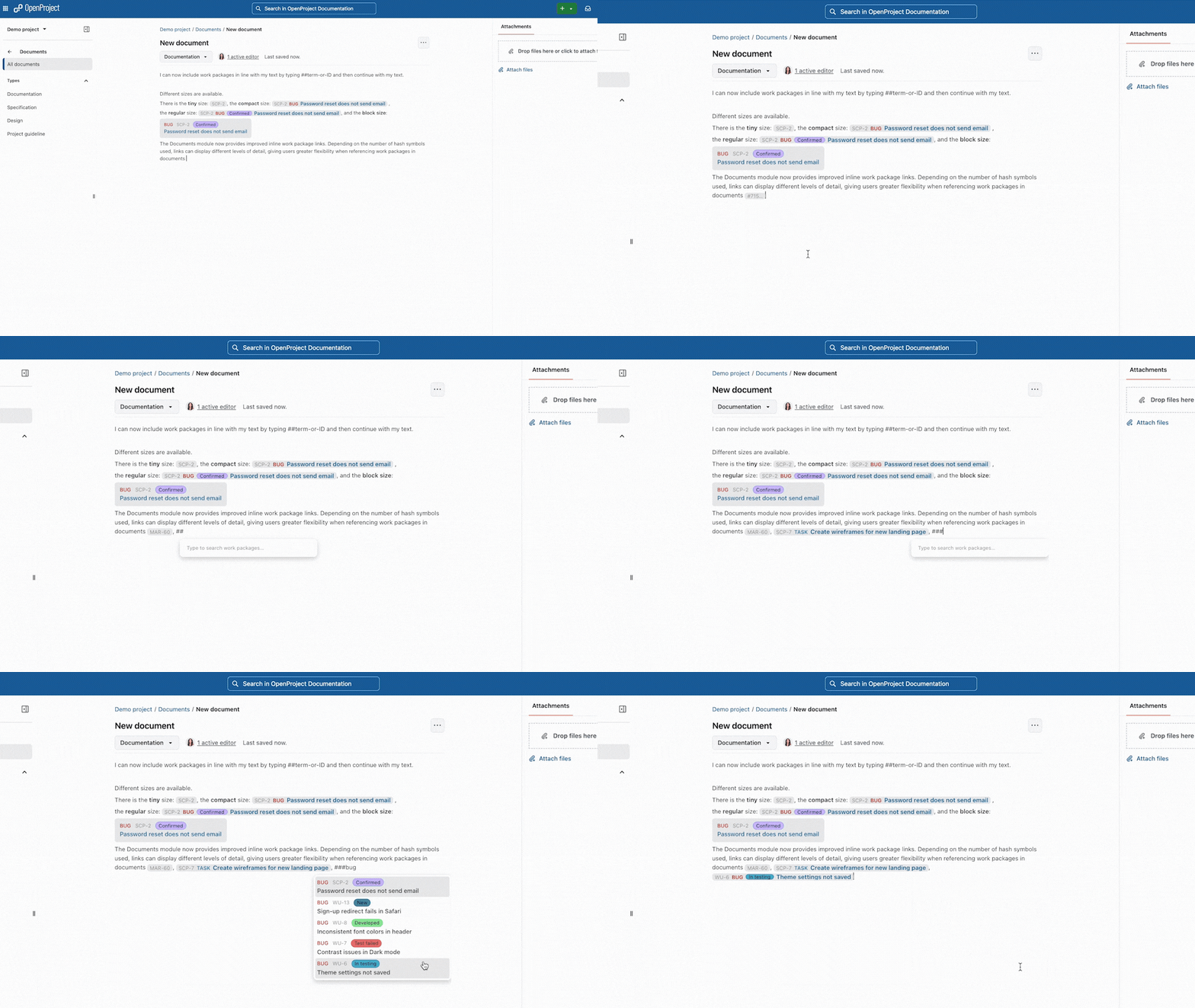
GIF: Using hashtags, to create inline links to work packages in the OpenProject Documents module.
Conseil
Do not type a space directly after your hashtags, as this may convert it into a heading. However, as soon as the overview opens, you can use spaces to search for what you are looking for.
Where does linking work?
In short, the answer is almost everywhere! To link work packages effectively and streamline processes, navigation should be intuitive. That is why we have implemented linking work packages in virtually every area of OpenProject where text can be typed. That’s what makes it so handy: once you’ve tried it a few times, you’ll soon find yourself using it without even thinking about it.
Linking work packages can be used in the following places:
- Work package descriptions
- Comments in the Activity tab
- Meeting notes
- Pages wiki
- Forums
- Actualités
- Documents
The inline linking of work packages in documents is a new feature of OpenProject 17.5. This makes the functionality consistent across the entire application and enables smoother collaboration. As shown below, in documents, links can now be displayed either inline by default or in a box by choosing it from a menu. To create a link, you can use ‘#’ or type /w.
Examples of work package links
Now, let’s take a look at some practical examples to help you get started using this functionality. Keep in mind that these are just two examples of best practices, but as mentioned, it works throughout OpenProject, so there are various processes it can be implemented in.
From agenda to action: linking in meetings
Let’s meet Zahra: she leads the weekly update meeting with all teams in her company — a common event in almost every company’s schedule. In the past, Zahra noticed that people would tune out during the meeting, and that a lot of follow-up conversations afterward circled back to topics that had already been discussed and explained. She knows how hard it can be to follow what everyone is talking about, especially when colleagues work in a different department. So Zahra decided to ask each team lead to include links to their work packages right in the meeting notes.
In the screenshot below, we look at the meeting agenda - already filled out by each team. As you can see, the work packages in their inline format blend right into the text and lists. It is also possible to directly add a work package to the agenda. For everyone in the meeting, taking a closer look at the work package someone is talking about is now just one click away.

Remarque
This is not a completely fictional example, but very similar to how we structure our weekly meetings at OpenProject. As we are working with our own software every day, we know about the importance and impact of these “smaller” functionalities.
You can also find more information about meetings in OpenProject in our user guide.
Quarterly plans worth sharing: linking work packages in documents
Imagine Kian, an ambitious team coordinator in a fast-growing company. His goal is to align all his teams and team leaders around one clear vision to work towards. So, together with his team, he regularly maps out the quarterly goals in OpenProject’s Documents module.
However, a quarterly plan can easily become packed with information, and keeping it up to date takes effort. Then Kian started linking work packages, and that changed how his plan works. As you can see in the screenshot below, it now looks neatly organized: a short overview of each phase for every team, with the key work packages linked inline. The main benefit remains: Work packages are easily accessible from the plan, turning the quarterly overview from a passive document into an active way to navigate the project.

By varying how much detail each link shows, Kian keeps the document clear and easy to scan. His team leads can immediately see what’s in progress, what still needs doing, and what’s already been achieved.
You can find more information about using documents in OpenProject in our user guide on documents in OpenProject.
How linking work packages with ‘#’ differs from relations and other macros
OpenProject offers a few features that sound similar to linking work packages but do very different things. Let’s clear up what sets them apart from one another, so you know exactly which one to use and when.
Not the same: creating relations between work packages
Although they may sound similar at first, it is important to distinguish between linking and creating relations between work packages.
By linking to a work package, you can “mention” it and quickly access it. This can be done anywhere in OpenProject where text can be entered. In contrast, creating a relation between work packages establishes a conditional relation that can affect their start and end dates or status. This relation can be viewed and edited in the ‘Relations’ tab of a work package.
Read more about the relations in our user guide.
Not the same: creating detailed macros of work packages
When linking to a work package, the link can also show the work package’s status and start and end dates. But it would also be useful to display other attributes of the work package, such as assignee or priority, and have them updated automatically. However, they cannot be displayed in a link - but that is exactly what macros are for.
Macros are placeholders that display a work package attribute anywhere and update immediately when the value changes. Technically, links are a special type of macro that is clickable. An example of a macro is “workPackageValue:126:assignee”, where “assignee” can also be replaced with “status”, “due date”, and more. You can also create relative macros, which automatically point to a specific work package, and turn your recurring structures into reusable templates. You can find more information on macros, how they work, and how to use them in our blog article “How to save time by using macros in OpenProject’s editors”.
Remarque
Macros are currently not available in documents.
Conclusion
Because work packages are so central to OpenProject, linking quickly becomes a habit. It makes it possible to display information in a transparent and easily accessible way and can create highly individualized ways for people to navigate the application.
We know many use cases from working with our own software every day, but we would love to hear about yours! Feedback and feature suggestions from our Community are a key part of how we develop OpenProject, so don’t hesitate to contact us.